







3ds Max to photoreal render in under 10 seconds
- Upload a screenshot, sketch or plan
- Unlimited renders & fixes
- Works on any device, no download
No credit card required
Trusted by architects & interior designers in 100+ countries
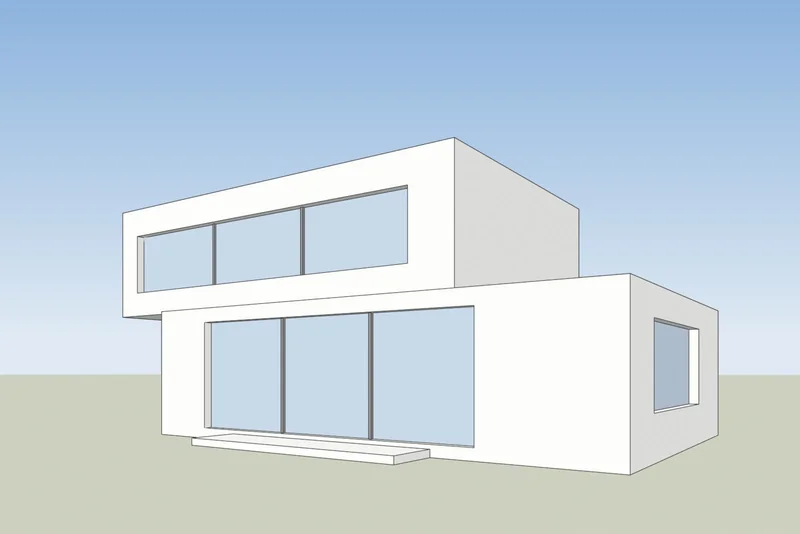
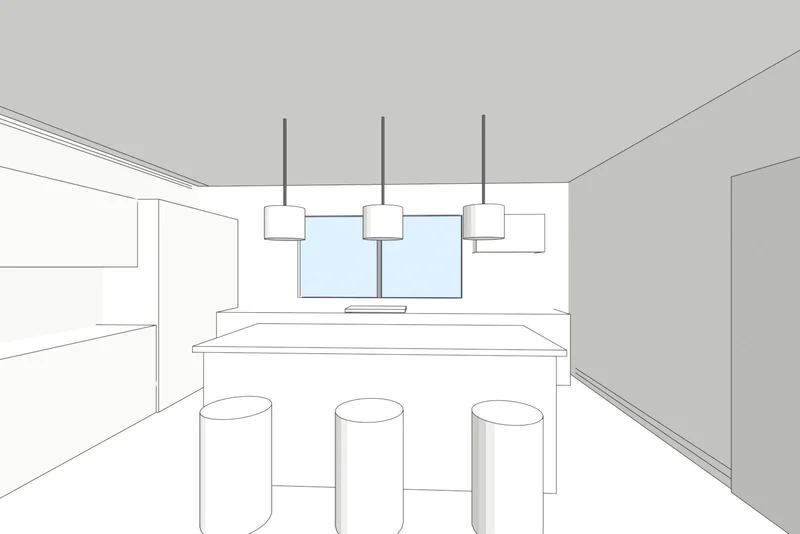
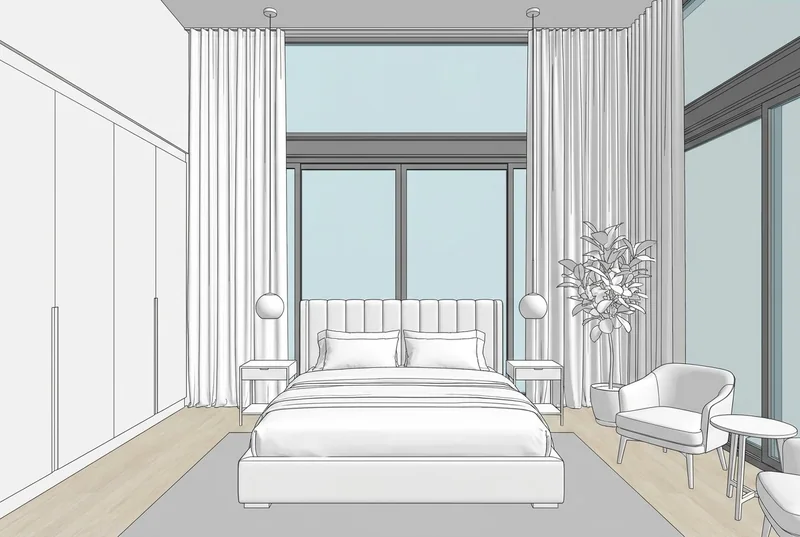
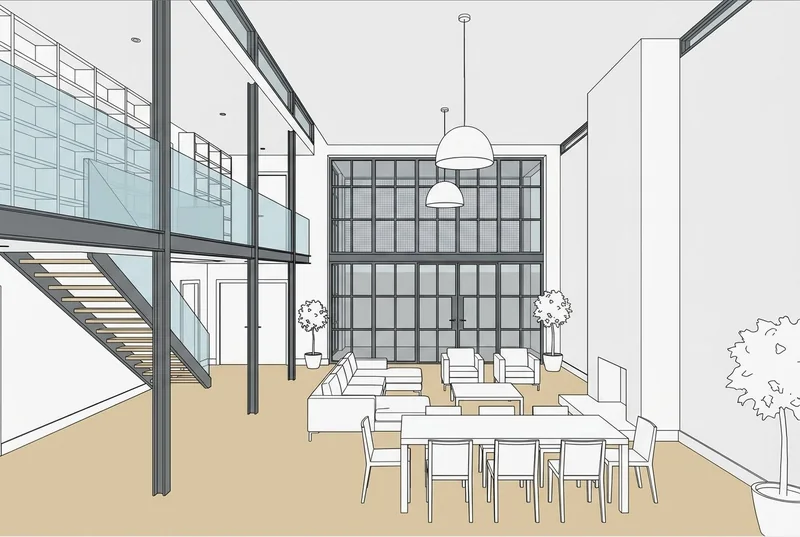
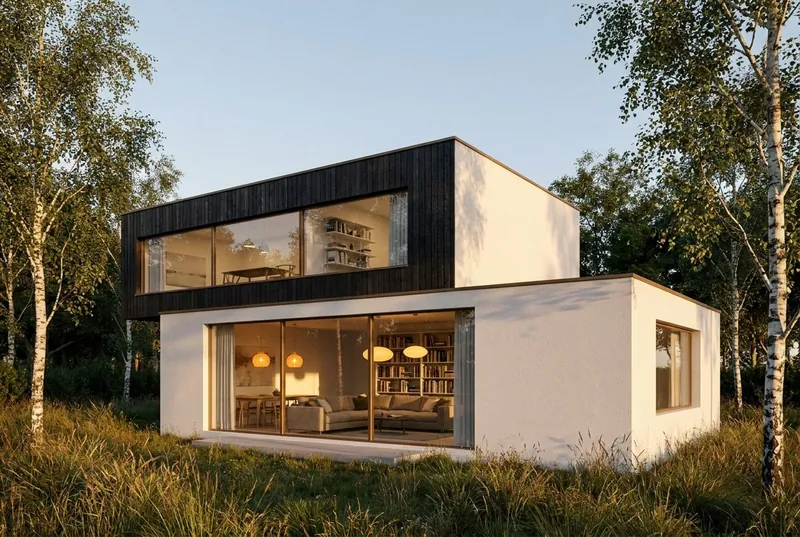
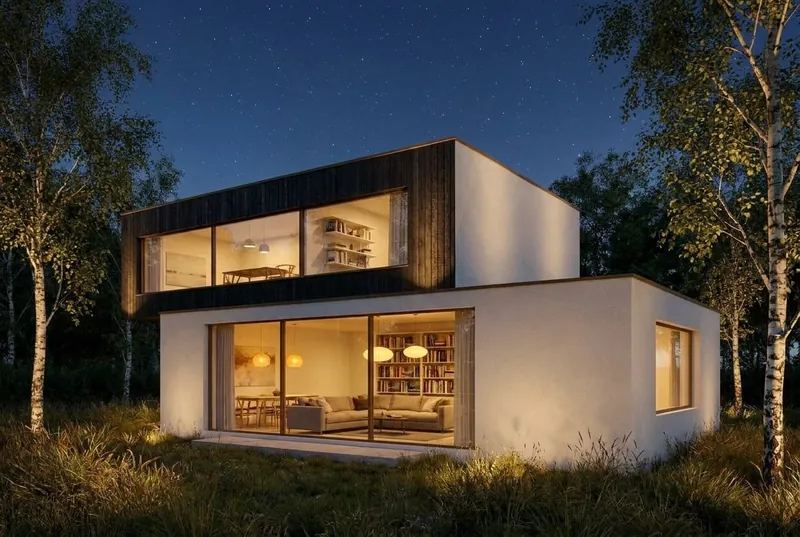
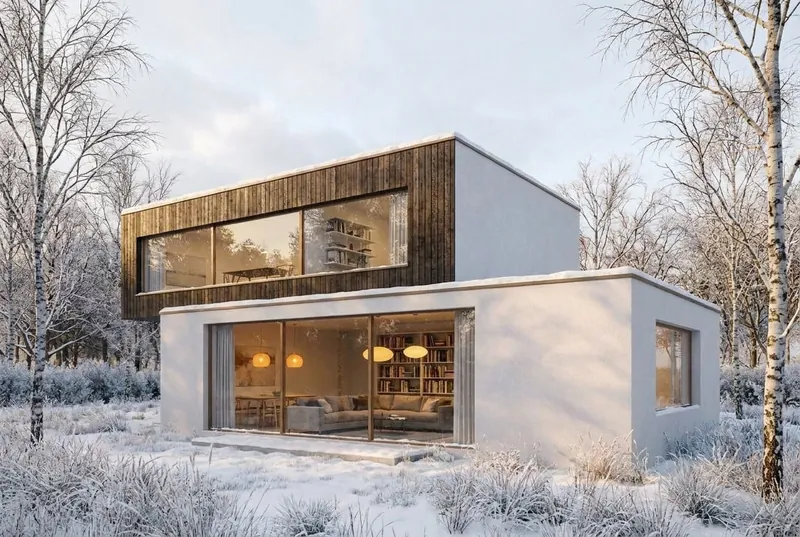
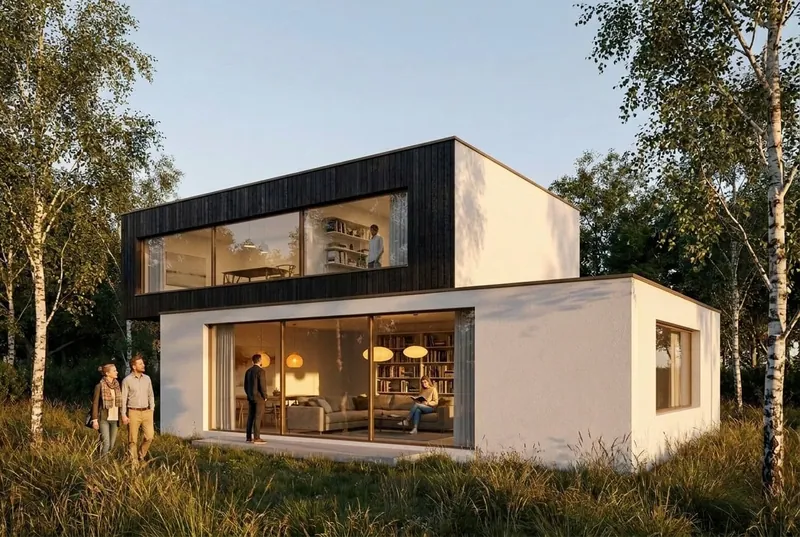
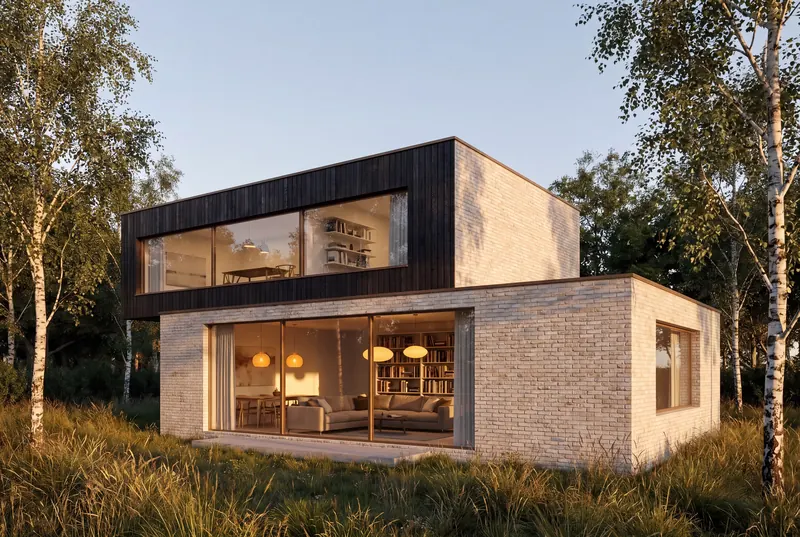
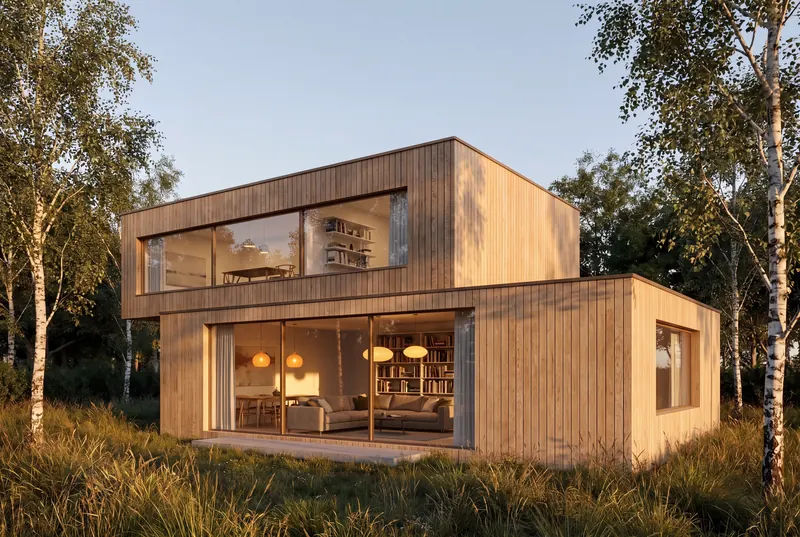
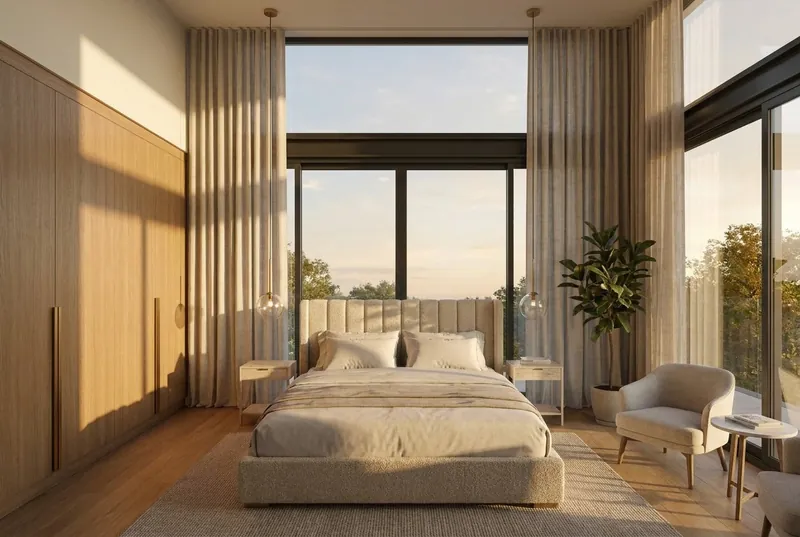
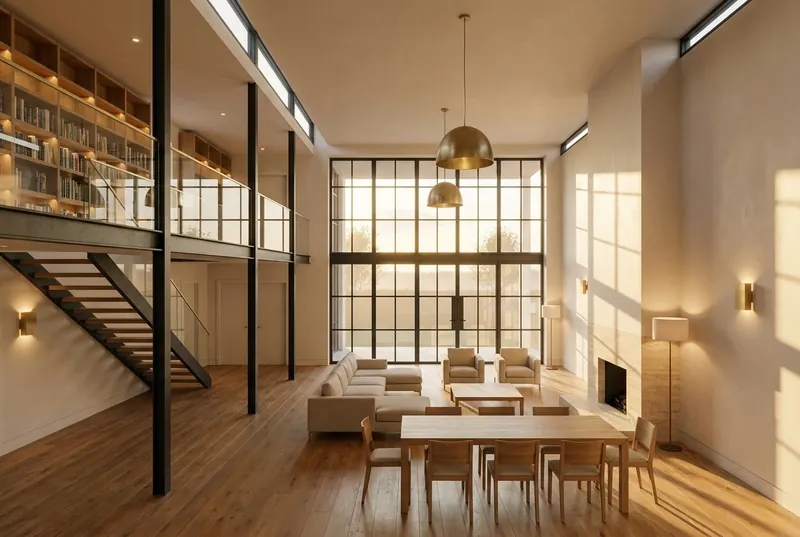
A 3D view in, a photoreal render out
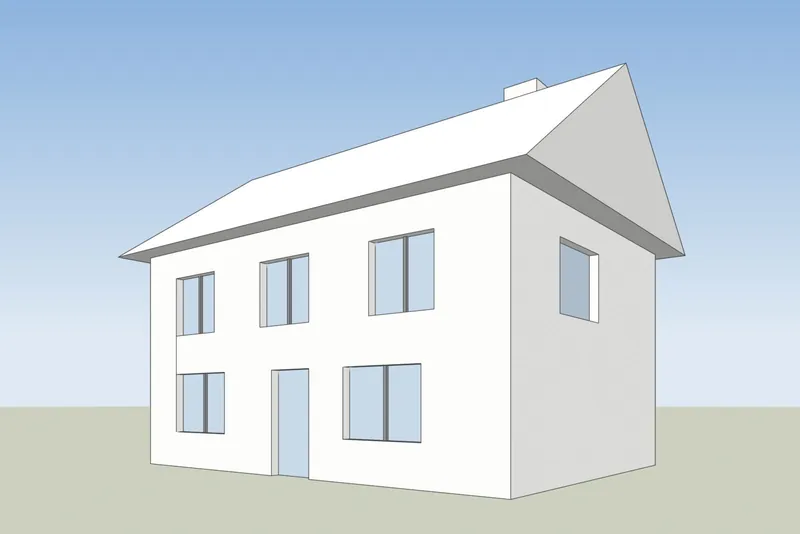
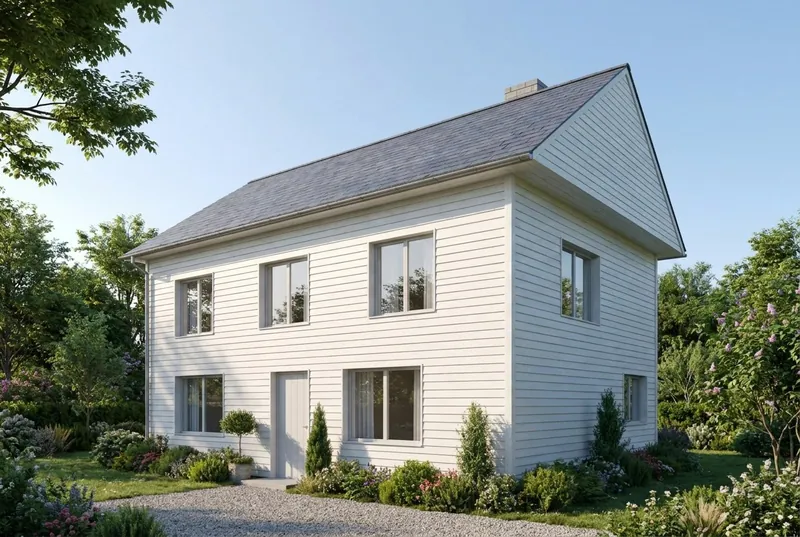
The sample models were built in Blender and are shown as plain 3D views, not as 3ds Max files. The render that came back is on the right, not edited.
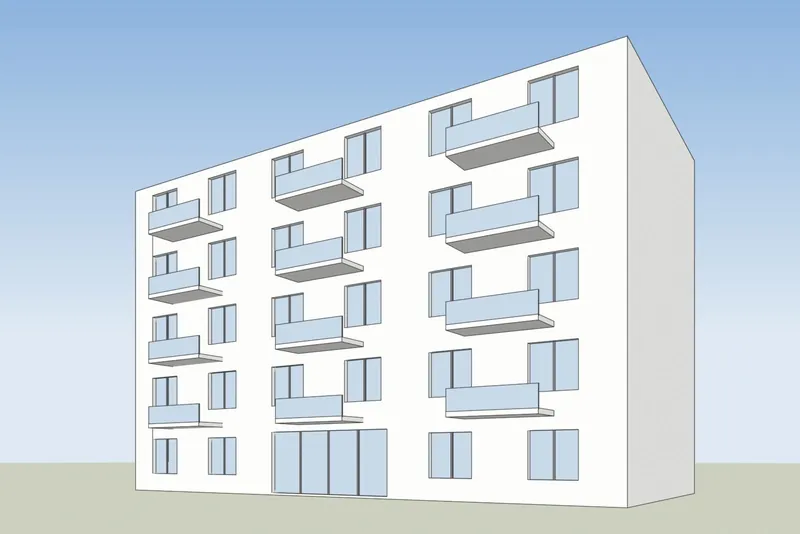
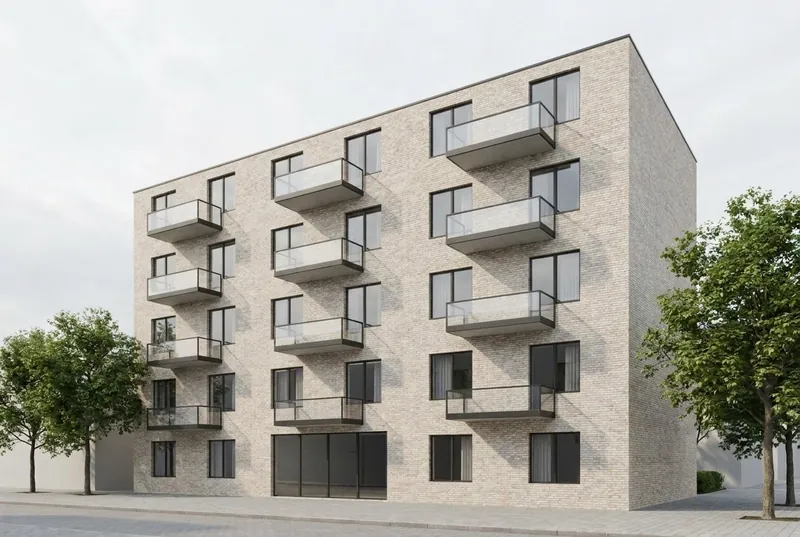 BeforeAfter
Apartment building
5 floors in late sun, with planted balconies, a cafe and people on the street. The balcony positions and the window grid follow the model.
 BeforeAfter
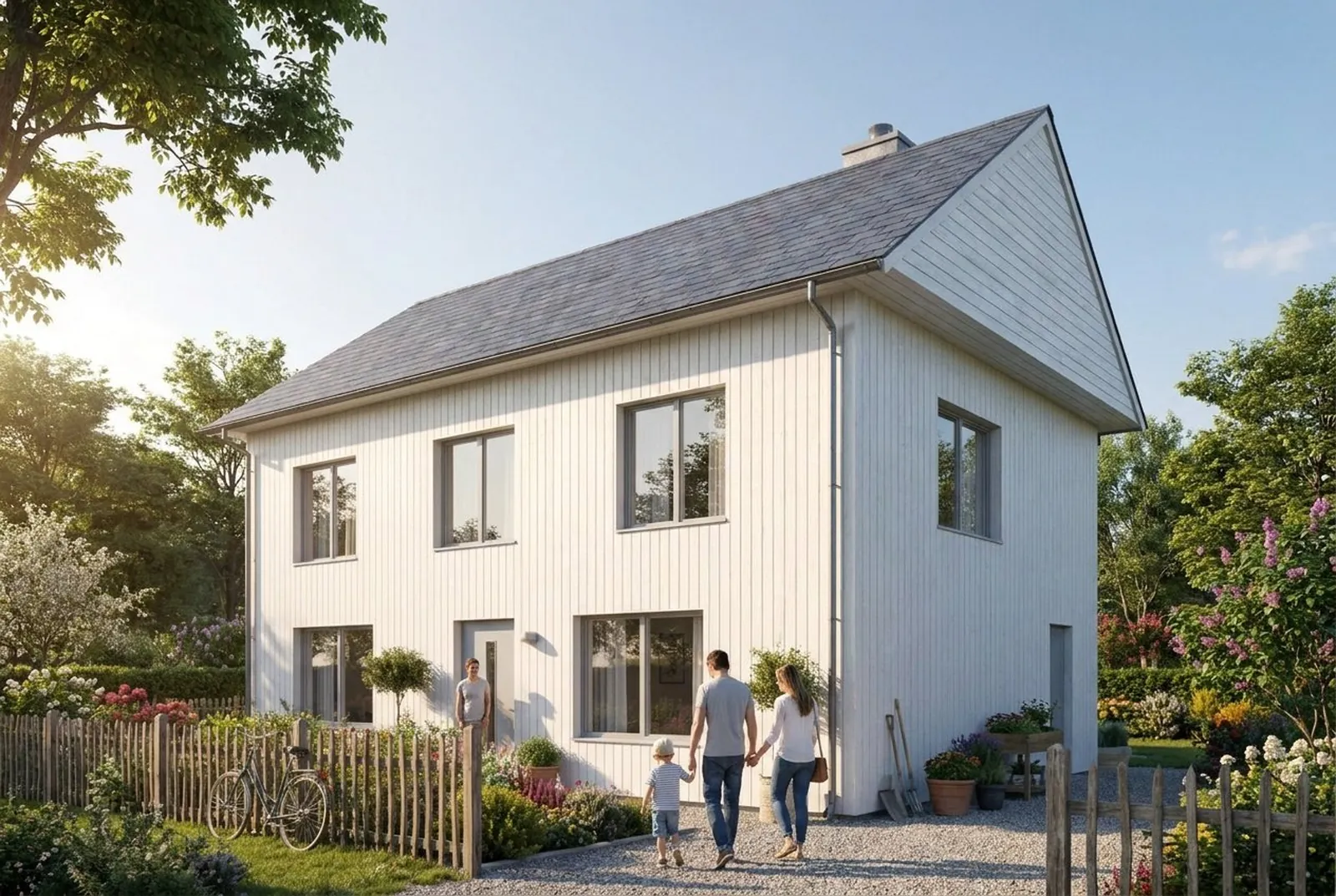
Family house
A pitched roof house on a summer morning, with a family on the drive. The gable, the chimney, the door and all 8 windows are where the model has them.
How to get your 3ds Max view ready
4 steps, and only the export is required.
1. Frame the active viewport
Set up a Perspective or Camera viewport the way you want it in the picture. Hide helpers, lights, cameras and the grid so only the model shows.
2. Use a plain viewport style
Set the viewport to Default Shading or Clay, with a plain model. The AI adds its own materials and light.
3. Save the view as an image
Take a screenshot of the active viewport and save it as a PNG.
4. Render it
Upload the PNG, pick daylight, evening sun, dusk or night, and add a short note about materials if you want, such as white render and oak windows.
What the AI keeps from your 3ds Max model and what it changes
So you know what to show a client and what to send to our studio.
What stays the same
The shape of the building, the windows and doors, the roofline and the number of floors. The camera angle stays exactly as in your screenshot.
What the AI changes
Materials, light, sky, planting and furniture finishes. Use the note field to steer them, for example white render and oak windows.
What can be simplified
Very fine details, such as thin window bars or small railings, can come out simpler than in the model. For exact final images, use our studio.
What happens to your file
Only the screenshot is sent, never your model file. We do not use your images to train AI, and we do not publish your renders.
Simple pricing
Prices in your own currency.
Pro
For one architect who needs great stills
€25 / month
- Unlimited Standard renders
- 1 user seat
- 1 render at once
Everything in Free, plus:
- Unlimited HD renders, edits and enhancer
- 10 animations a month
- No logo, 2x upscale
- 4K downloads included
- 5-second videos
- Client review links
Studio
Most popularFor a practice that wants stills and animation
€39 / month
- Unlimited Standard renders
- 3 user seats
- 2 renders at once
Everything in Pro, plus:
- Unlimited HD renders, edits and enhancer
- 50 animations a month
- 2 versions at once
- 4K and 8K downloads
- Shared team gallery
- One credit pool shared by the team
- White label: your logo and colours
- Your logo on client review pages
- 1:1 video training (30 min)
Max
For your whole team in one workspace
€79 / month
- Unlimited Standard renders
- 5 user seats
- 4 renders at once
Everything in Studio, plus:
- Unlimited HD renders, edits and enhancer
- 200 animations a month
- 4 versions at once
- 4K and 8K downloads
- 10-second videos
- Priority support
- Early access to new features
- 1:1 video training (60 min)
Prices include VAT or sales tax where it applies.
Top up without a plan
One payment, and the credits never expire. Any purchase also removes the logo, upscales your renders 2x and unlocks 5-second videos.
Questions about AI rendering for 3ds Max
Versions, render engines and client work.
Try it on your 3ds Max modelDo I need V-Ray or Corona?
No. You send a plain viewport image and the AI adds the materials and light. Nothing renders on your computer, so a quick image does not need a render farm or a strong graphics card.
Is there a 3ds Max plugin?
Not yet. A 3ds Max plugin is coming soon. Today you upload a screenshot of the viewport, which works in any version.
Which 3ds Max versions work?
Any version, with a screenshot of the viewport.
Which viewport style should I use?
Default Shading or Clay with a plain model gives the cleanest result. Hide helpers, lights and the grid.
Does it work for 3ds Max interiors?
Yes. Set up a camera inside the room, capture that view and upload it. Very fine details can come out simpler than in the model.
Can I show a 3ds Max AI render to a client?
Free renders are for personal use and carry a small 3Dstudio.co logo. Any plan or credit pack allows client work and removes the logo. Pro and up also give you client review links.
Do credit packs expire?
No. Credit packs never expire and need no subscription. You pay once and use the credits when you need them.
3ds Max is a trademark of its owner. 3Dstudio.co is not affiliated with it.
AI rendering for your other 3D programs
Any program that can take a screenshot of a 3D view works. These pages have the export steps.
Render a 3ds Max view now
Free to start, no credit card. Your first render is ready in under 10 seconds.