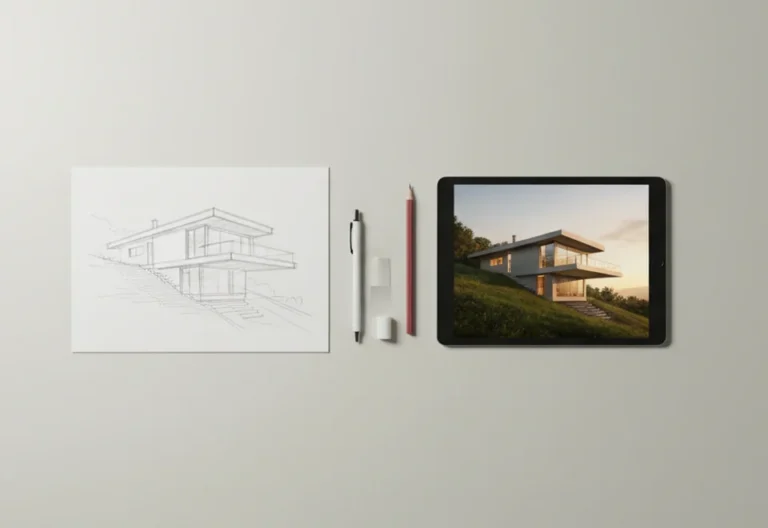
Revit AI in 2026: Built-in Features, Plugins and AI Rendering
What a Revit user can do with AI today: Autodesk's built-in features, third-party plugins, and AI renders from a screenshot, with a comparison and export steps.

In this article
- Autodesk Assistant and a Model Context Protocol server are the AI items in Revit 2027, and neither makes rendered images.
- Veras, RunDiffusion and usBIM.codesign AI are plugins that make images inside Revit, each with its own trial and plan.
- A screenshot of a Revit 3D view can go to a web AI tool with no plugin.
- AI in Revit does not check code compliance or replace the model, and its images are not checked against your drawings.
Revit AI today means 3 separate things: AI features Autodesk has built into Revit, AI plugins from other companies, and AI images made from a screenshot of a Revit view. Autodesk Assistant and a Model Context Protocol server are the built-in items in Revit 2027. Veras, RunDiffusion and usBIM.codesign AI are plugins that make images inside Revit. A screenshot route needs no plugin at all.
This guide covers each route, what it does and what it needs, a comparison table, how to export a clean Revit view for an AI renderer, and what AI in Revit does not do. We make one of the tools discussed here, 3Dstudio.co AI Render, so this is written by a competitor. Every vendor fact below was read on the vendor’s own page on 19 November 2026 and can change. For rendering in general, see our guide on how to render in Revit.
Revit AI: 3 routes
People search for “revit ai” and mean different things. Some want a chat helper that answers questions about the program. Some want a plugin that turns a model view into a picture. Some want to avoid installing anything. These are 3 routes with different inputs and different results.
- Built into Revit. Features that Autodesk ships with Revit or runs in its own cloud.
- Third-party plugin. An add-in from another company that you install in Revit.
- Screenshot to AI render. You export an image of a 3D view and a web tool makes a new image from it.
The routes do not exclude each other. A Revit user can ask the built-in assistant for a schedule and use a screenshot tool for a concept image in the same day.
AI features Autodesk built into Revit
Autodesk’s help for Revit 2027 lists the AI items below. The help pages do not state a plan, language or minimum version for them, so check what your own Autodesk subscription includes.
Have a 3D model? 3Dstudio.co turns a screenshot of it into a photoreal image. The first render is ready in under 10 seconds. Free to start, no credit card.
Render your model freeAutodesk Assistant
Autodesk’s “What’s New in Revit 2027” page describes Autodesk Assistant in Revit as an agentic design and make partner, with conversational, context-aware automation for AEC workflows. The page names 3 capabilities:
- Product help. Guidance on Revit features and workflows.
- Model queries. Answers drawn from the information in your model.
- Task automation. Revit tasks done from a typed prompt, such as creating a door schedule.
To use it, you sign in with an Autodesk account and click the Autodesk Assistant icon in the title bar. Autodesk’s help also lists personalized Insights and Recommended Prompts, and says that from Revit 2027.2 the Assistant can receive targeted updates between full Revit releases.
The help describes controls for AI-driven changes. All Assistant actions are logged in the Revit journal, AI-driven changes are labeled in the Undo menu, and a Stop button interrupts an interaction. Autodesk also says family edits have checks to prevent unintended model-wide changes.
Revit Public MCP Server (tech preview)
Autodesk labels the Revit Public MCP Server as a tech preview. A Model Context Protocol server is a standard program that connects AI models to outside tools and data. Autodesk’s help says this one can report on your model, find elements, check parameter values and count items. It can also apply bulk parameter edits and capture visual snapshots of views. You run its tools from inside Autodesk Assistant in Revit.
Revit rendering is not AI
People often mix up rendering and AI. Revit’s own rendering draws what the model contains. It does not invent a new picture. Our guide on rendering in Revit covers the options.

Revit AI plugin options from other companies
A Revit AI plugin is an add-in made by a company other than Autodesk. Most of the ones listed below make an image from a view of your model. The 3 below are the ones whose vendor pages we could read on 19 November 2026. Plans and credits change, so use the vendor page for current terms.
| Plugin | What the vendor page says | Install and access | Trial or plan on the page |
|---|---|---|---|
| Veras (Chaos) | Turns a 3D model into a photoreal image or animation. Revit is listed among the programs. | Runs as an add-in inside Revit. Chaos lists Revit 2022 to 2026. Needs an internet connection, because the AI runs in the cloud. | 14 days free. Starter, Pro and Ultra plans, priced by AI credits. |
| RunDiffusion | Turns a shaded or low-detail Revit view into a presentation image from a prompt. Works from a 3D view, section or elevation. | Installed from its Autodesk Marketplace listing. One installer covers Revit 2024 to 2027. You sign in from the add-in settings. | Needs an account with an active subscription and tokens. A “Try it free” banner is on the page. No plan prices on the page. |
| usBIM.codesign AI (ACCA) | Makes AI renderings from any view of a 3D or BIM model, with style selection and virtual staging. | Download from the ACCA site or the Autodesk App Store. No steps or requirements are listed on the page. | 7 days free with 30 credits, then a credit subscription. A render costs up to 3 credits. |
Veras is the one most Revit users meet first, because Chaos also sells Enscape and V-Ray. Chaos describes the Veras workflow in 4 steps: open a 3D camera view, click Veras Start on the Chaos tab, pick a preset or use the Compose tab, then write a prompt and click Render. Plan and section views do not work in Veras. For what the plans cost, read our Veras pricing guide, and check the Chaos page for current figures, because plan prices are changing at the time of writing.
A plugin is the better choice when you render many views a week, want the AI inside the Revit window, or need your IT team to approve one installed tool. The limit is the same as for any add-in: it must support your Revit version, and a company that blocks add-ins will not allow it. Other AI tools for Revit exist for layout and massing, but we did not find a Revit add-in listed on the vendor pages we read, so we leave them out.
AI for Revit without a plugin: render from a screenshot
The third route needs no add-in. You export an image of a 3D view and upload it to a web tool. 3Dstudio.co AI Render for Revit is our version. It runs in a web browser, so there is nothing to install and no graphics card is needed. Only the screenshot is sent. The Revit file itself never leaves your computer.
AI Render aims to keep the shape of the building, the windows, the roofline, the number of floors and the camera. It changes materials, light and surroundings. Very fine details, such as thin window bars, can come out simpler than in the model. If a render loses your design, the app renders it again once, for free. The app also has 36 looks, from daylight to night and sketch styles. You can brush over one area, such as the sky or a floor, and change only that part.
You start free with no credit card, and you sign in with Google or email to see your first render. Free renders carry a small 3Dstudio.co logo and are for personal use. Client work needs a paid plan or a credit pack. Try it with a screenshot of your own Revit view, and see the pricing page for plans, which show in your own currency.
The weak points are plain. You have no live link to the model, so each new design change needs a new screenshot. The result is a new picture, not a view of the model. Our guide to AI rendering for architects explains how to keep the design in each result.

Revit AI routes compared
| Built into Revit | Plugin (Veras, RunDiffusion, usBIM.codesign AI) | Screenshot to AI render | |
|---|---|---|---|
| Install | None. Sign in with an Autodesk account for the Assistant. | An add-in for your Revit version. | None. Runs in a web browser. |
| What goes in | Typed prompts and your model data. | The current 3D view, plus a prompt. | A PNG, JPG or WebP screenshot of a 3D view. |
| What comes out | Answers, schedules, parameter edits and other model tasks. No new images. | New images of the view. Veras also lists animation. | New images of the view. |
| Cost model | Autodesk lists no separate price on the pages we read. Check your subscription. | Plans, credits or tokens, with a free trial on 2 of the 3 vendor pages. | Free start, then plans or credit packs. |
| What to check | Every change the Assistant made, in the Undo menu and the journal. | Revit version support, credit use, and every window and the roofline in each image. | Every window and the roofline in each image, and the logo and license on free renders. |
How to export a clean Revit view for an AI renderer
A clean input gives an AI tool less to guess. These steps work for a plugin or a screenshot tool.
- Open a 3D view. Use a perspective camera. A plan or section view gives the AI a flat drawing, not a building.
- Set the visual style. Choose Shaded or Consistent Colors. Realistic adds textures that the AI may copy into the result.
- Hide what is not needed. Turn off grids, levels, section marks, tags, dimensions and clutter such as furniture you will not show.
- Frame the camera. Place the camera at eye height for a street view, with verticals straight. The camera angle you choose is the angle in the result.
- Keep the shadows simple. Strong shadows are read as surfaces. Soft, even light gives cleaner results.
- Export the image. Go to File, Export, Images and Animations, then Image, and save a PNG. A normal screenshot of the window also works.
- Check the file. Open the PNG before you upload it. Make sure no menu, cursor or text overlay is in the picture.
Tip: keep the original screenshot beside every result. Put the two side by side and count the windows, floors and balconies before you share the image.
What AI in Revit does not do
- It does not check code compliance. Autodesk’s pages we read describe help, model queries and task automation. None of them states that the result is checked against building codes.
- It does not replace the model. An image from a plugin or a screenshot is a new picture. The Revit model remains the source for drawings, schedules and coordination.
- It does not verify its images against your drawings. Depending on the tool, details such as window frames, balconies or the roofline can change or come out simpler. Nothing in the output is checked against your drawings.
- It does not remove your review. Autodesk’s own controls (journal, Undo labels, Stop button) exist so a person can see and reverse what the Assistant did.
AI images are good for exploring options and early concepts. Our article on the difference between CGI and AI explains why a CGI image built from the model works differently. To compare more tools for architects, read the best AI rendering software comparison. If you want to know what Revit itself costs, see the Revit price guide.
When to use a studio instead
Use a studio when the image will go to a client, a jury, a buyer or a planning file, and it has to match the drawings. At 3Dstudio.co we build the model from your drawings and a person checks it against them. The AI route does not do that check. Our guide on AI for architects explains where each kind of tool fits in a project.
Questions about Revit AI
Does Revit have AI built in?
Yes. Autodesk’s Revit 2027 help describes Autodesk Assistant, which gives product help, answers questions about your model and automates tasks from prompts. It also lists a Revit Public MCP Server as a tech preview. Neither is described as making rendered images.
What is the best AI plugin for Revit?
It depends on your Revit version and how many images you make. Veras, RunDiffusion and usBIM.codesign AI each support Revit, and each has a different plan. Use the free trial or free credits on the vendor page, and test the same view in each.
Can I use AI on a Revit model without installing anything?
Yes. Export a 3D view as an image and upload it to a web-based tool. The model file stays on your computer, because only the image is sent.
Does Revit AI change my model?
The Assistant can edit the model when you ask it to, and Autodesk lists Undo labels and a journal log for those changes. Image tools such as plugins and screenshot tools make new pictures and do not change the model.
Are AI images from Revit accurate to the drawings?
Not guaranteed. Depending on the tool, windows, balconies or the roofline can change, and nothing in the output is checked against your drawings. Compare each image with the model before you use it.
More on AI rendering
- 3Dstudio.co AI Render
- SketchUp AI rendering
- How to Render in Rhino: Built-in Render, Plugins and AI
- Revit Price in 2026: Subscription Costs, Revit LT and Rendering
- Architectural Rendering Software: Real-Time, Ray-Traced and AI
- SketchUp Price in 2026: Every Plan, What It Includes and Render Costs
- AI for Architects in 2026: What It Does Well and Where It Fails
- Free Rendering Software for Architecture: What You Can Do Without Paying
- How to Render in Revit: Built-in Rendering, Plugins and AI
- SketchUp Rendering Software: Plugins and Free Options Compared
- How to Render in SketchUp: Built-in Tools, Plugins and AI
- Twinmotion Price in 2026: Free Tier, Seats and Real Costs
- D5 Render Price in 2026: Community, Pro, Teams and Real Costs
- Lumion Price in 2026: Every Plan, Real Costs and a Cheaper Route