

Free AI rendering for architecture
Upload a screenshot of your 3D model and get a photoreal render of the same building in about 20 seconds.
- Keeps the shape, windows and roofline of your model
- Daylight, evening sun or dusk in one click
- Runs in your browser, nothing to install
- 11 free renders and 11 free fixes, no card
No card. Your first render needs no account.







★★★★★
Rated 4.9 on Clutch
Made by 3Dstudio.co, a visualization studio with 1,200+ projects since 2013.
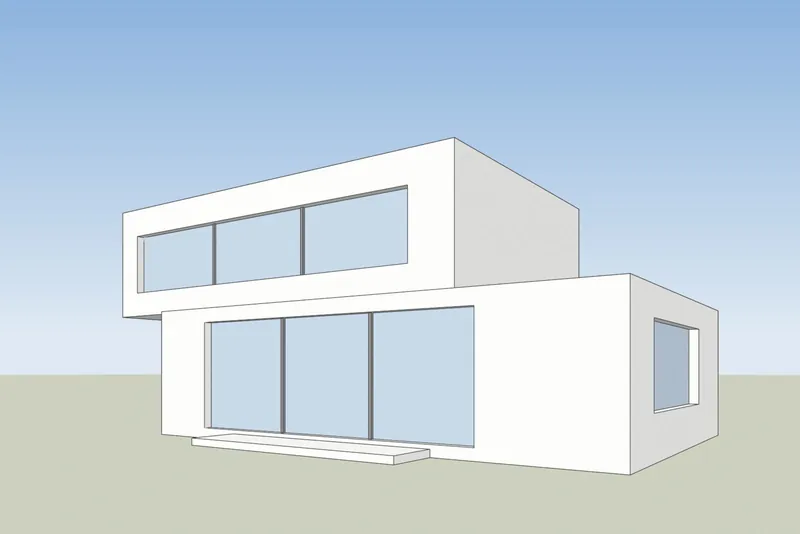
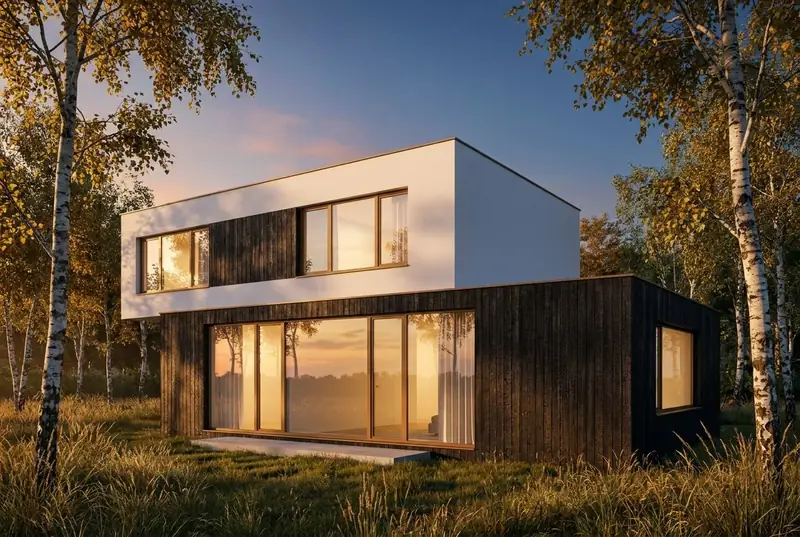 Your modelAI render
Works with a screenshot from any 3D program
 SketchUp
 Revit
Revit Archicad
 Rhino
Rhino Vectorworks3ds Max
 Blender
PNG, JPG or WebP. You never upload the model file.
Examples
AI architecture renders from real model screenshots
Drag across each image. The left side is the screenshot we uploaded and the right side is the render that came back. These are our own test models, and the renders are not edited.
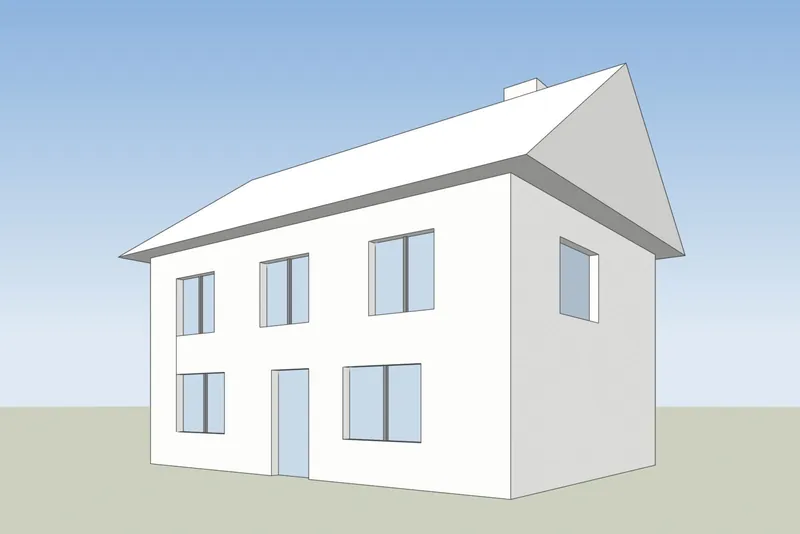
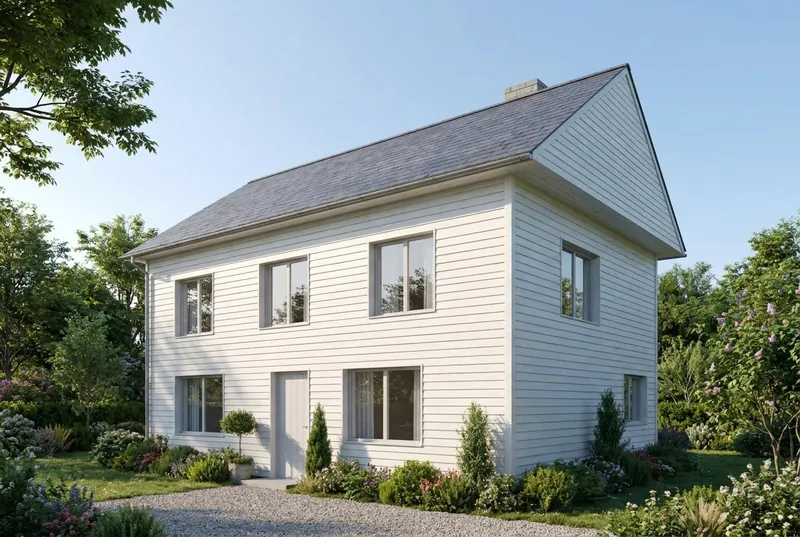 Your modelAI render
Family house
A pitched roof house on a summer morning, with a family on the drive. The gable, the chimney, the door and all 8 windows are where the model has them.
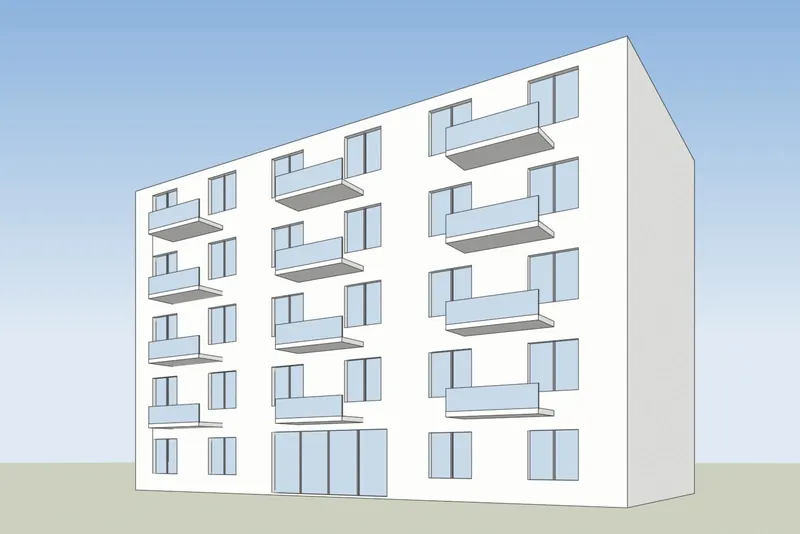
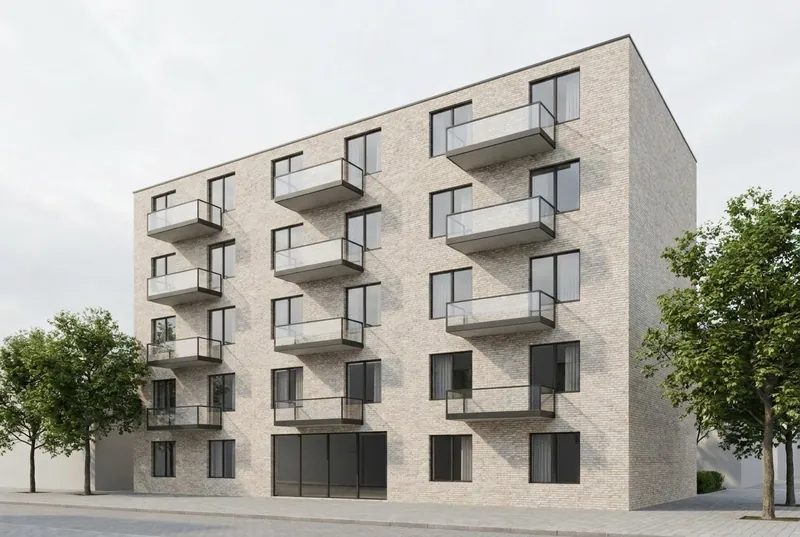 Your modelAI render
Apartment building
5 floors in late sun, with planted balconies, a cafe and people on the street. The balcony positions and the window grid follow the model.
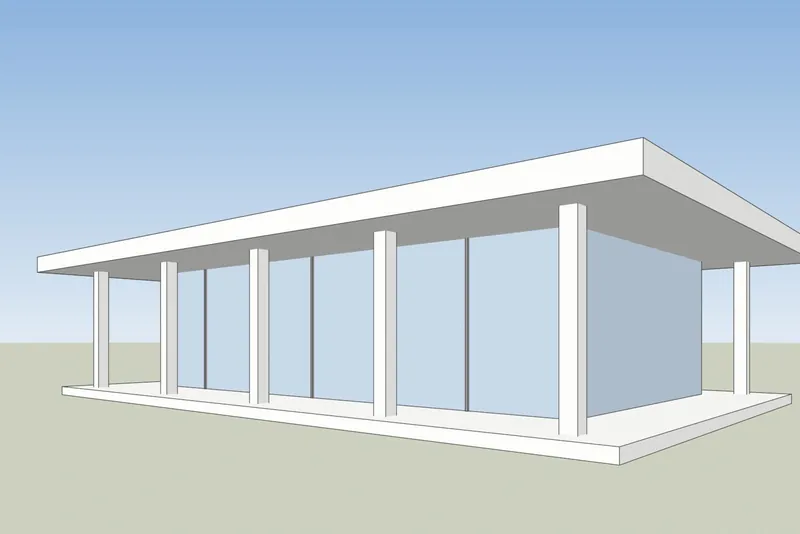
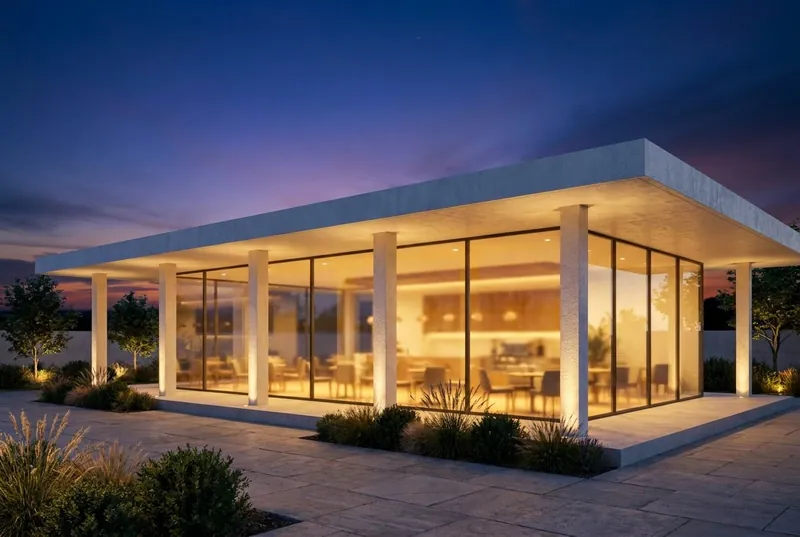 Your modelAI render
Glass pavilion cafe
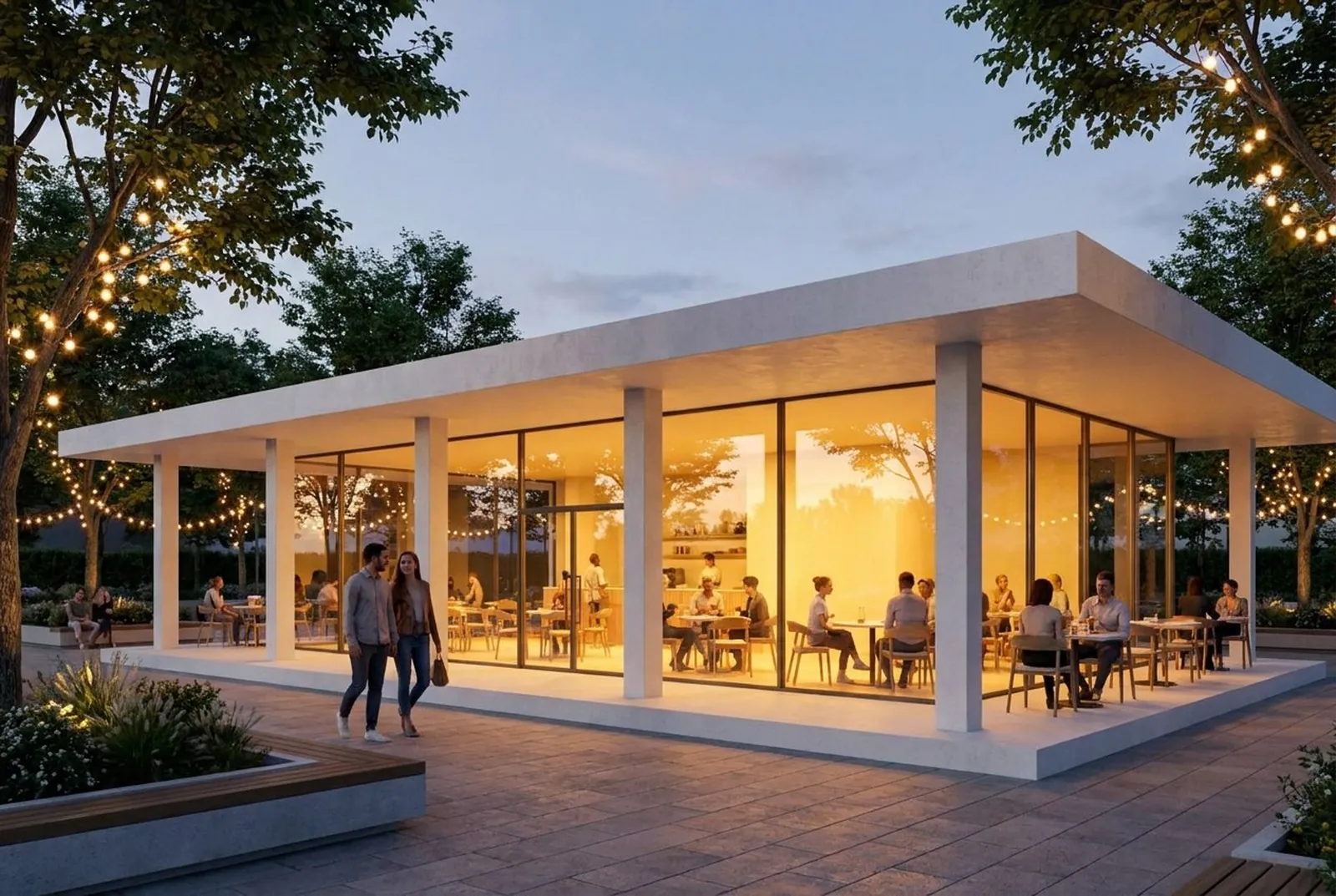
A flat roof pavilion at dusk, busy inside and on the terrace. The columns and the roof overhang match the model.
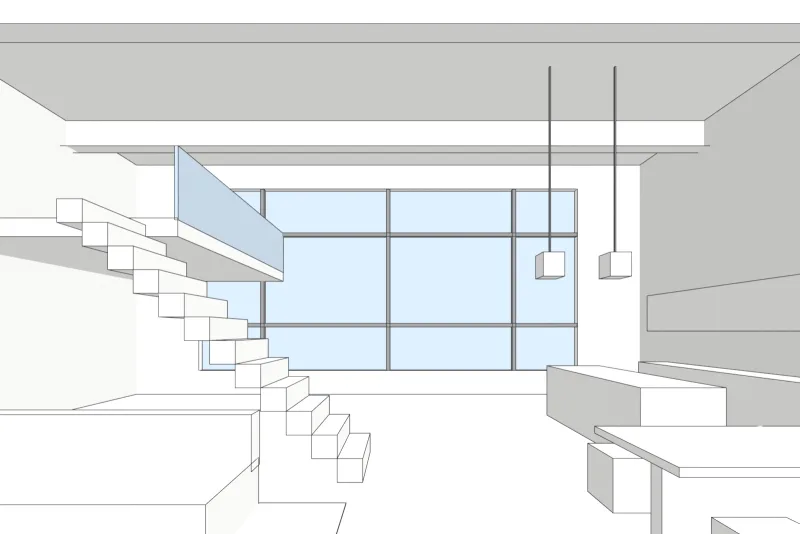
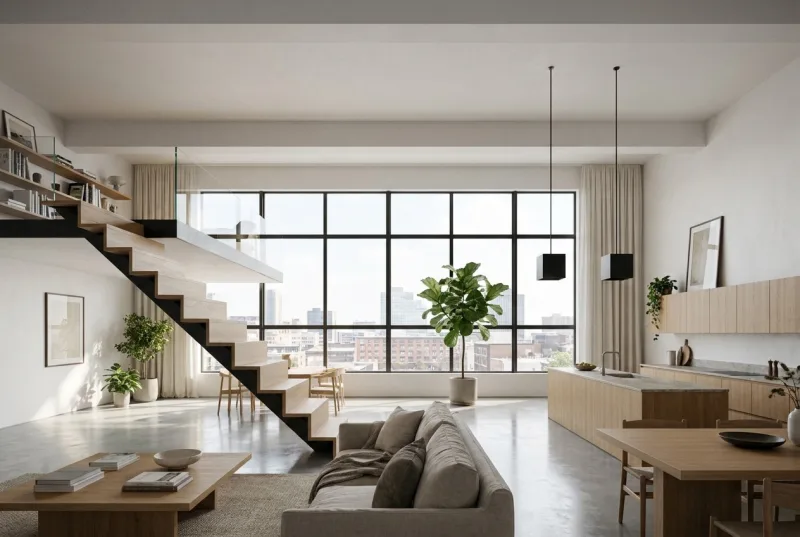 Your modelAI render
Loft apartment
A double height interior in daylight. The steel window grid, the mezzanine and the stair are as drawn, with new finishes and furniture.
How it works
How to make an AI render from your 3D model
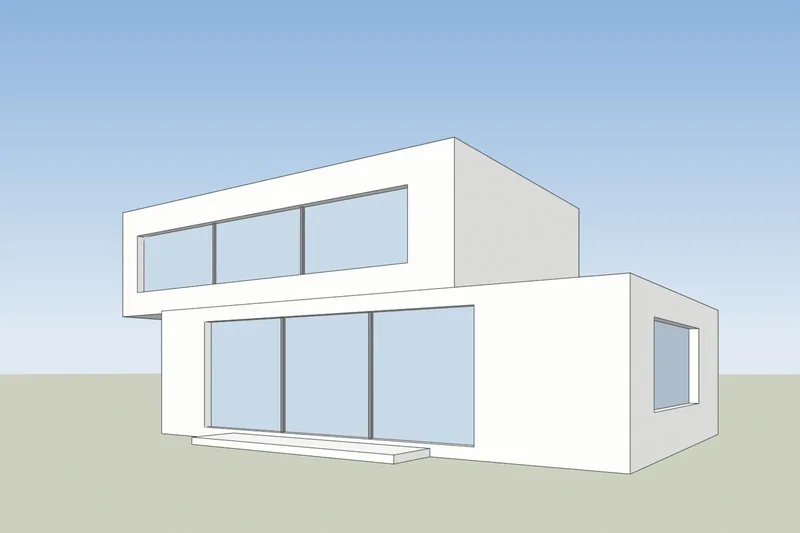
1. Take a screenshot
Frame the view in SketchUp, Revit, Archicad, Rhino or any 3D program and save a screenshot. A plain white or clay model gives the cleanest result.
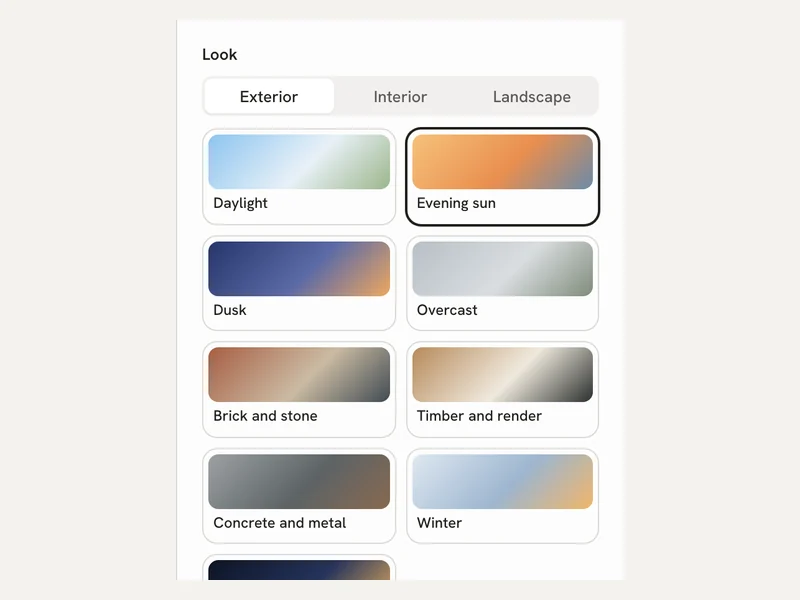
2. Choose the light
Upload the screenshot and pick exterior or interior, then daylight, overcast, evening sun or dusk. Add a short note about materials if you want, such as timber cladding.
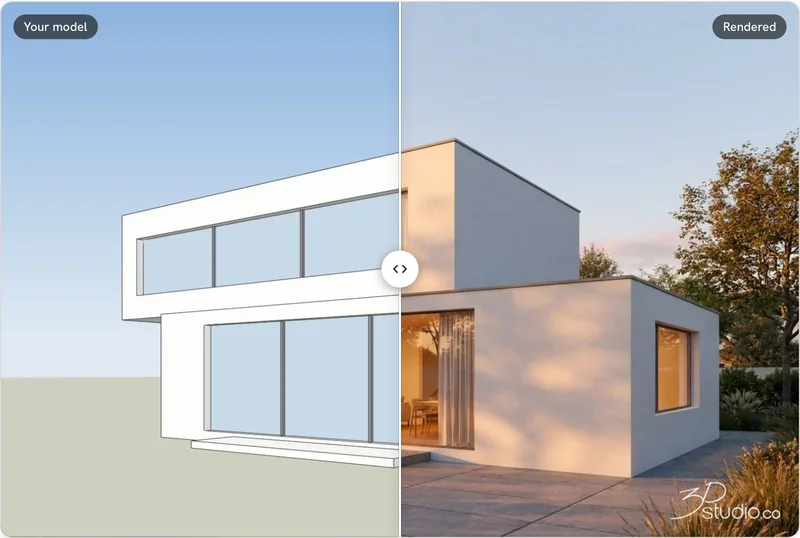
3. Render and compare
The render takes about 20 seconds. Drag across the result to check that nothing moved, then download it.
What to expect
What the AI keeps and what it changes
Details from the examples above. Very fine details, such as thin window bars or small railings, can come out simpler than in the model.
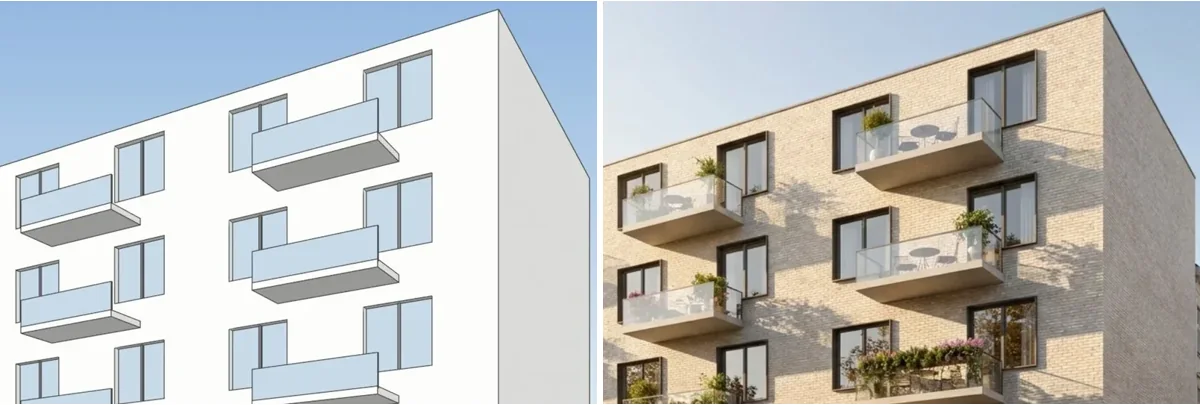 Your modelAI render
Stays as drawn
The shape of the building, the windows and doors, the roofline and the number of floors. The camera angle stays as in your screenshot.
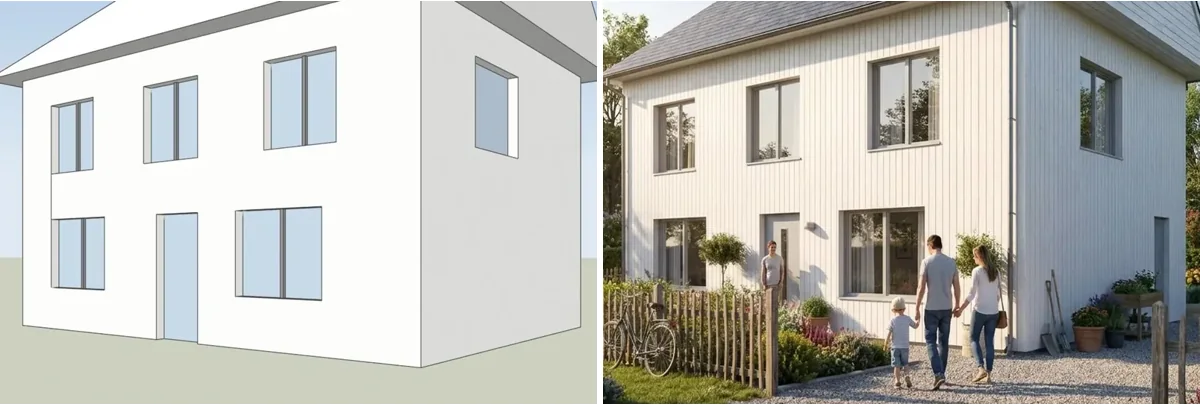 Your modelAI render
Changes with your choices
Materials, light, sky, planting and furniture finishes. Use the note field to steer them, for example white render and oak windows.
After the render
Change the light or fix one area without starting again

- Relight the same view: dusk, golden hour, night, overcast, winter, summer or rain.
- Fix one area of the render, for example a wrong material. A free account includes 11 fixes.
- Ask for another version of the same view.
- Download the image. Free renders carry a small 3Dstudio.co mark.
Privacy
Your designs stay yours
- Only the screenshot is sent, never your model file.
- We do not use your images to train AI.
- We do not publish your renders.
- Commercial use is allowed on every plan, including the free one.
Price
Start free, pay only if you render a lot
Credits never expire, and you can cancel from your account page.
Free
0 euro
- 11 free renders and 11 free fixes when you sign up
- Your first render needs no account
- A small 3Dstudio.co mark on free renders
- Commercial use allowed
Most popular
Pro
19 euro a month
- 600 credits a month, about 46 HD renders
- No mark, and images twice the size
- Unused credits roll over and never expire
- Cancel from your account page
Studio
49 euro a month
- 2,000 credits a month, about 153 HD renders
- No mark, and images twice the size
- Credits never expire
- Cancel from your account page
Free for students and teachers. Every student who creates a free account gets their own 11 free renders, and the images are theirs to use in reviews and portfolios.
Your 3D program
How to take the screenshot in SketchUp, Revit, Archicad and Rhino
Any screenshot works. These steps give the cleanest result.
SketchUp
Frame the view and set the face style to Shaded or Hidden Line. Then use File, Export, 2D Graphic and save a PNG. A normal screenshot of the window also works. More in the SketchUp AI rendering guide.
Revit
Open a 3D view and set the visual style to Shaded or Consistent Colors. Then use File, Export, Images and Animations, Image and save a PNG.
Archicad
Open the 3D window with a simple shaded 3D style. Then use File, Save As and choose PNG as the file type.
Rhino
Set the viewport to Shaded or Arctic. Then run the ViewCaptureToFile command and save a PNG at the size you want.
AI rendering FAQ
Questions about AI rendering for architecture
Files, accuracy, price and privacy.
What file do I upload?
A screenshot of your 3D model as a PNG, JPG or WebP image. It can come from any program: SketchUp, Revit, Archicad, Rhino, Vectorworks, 3ds Max or Blender. You do not upload the model file itself.
Will the AI change my design?
It keeps the shape of the building, the windows, the roofline and the number of floors. It changes the materials, the light and the surroundings. Very fine details, such as thin window bars, can come out simpler than in the model.
How long does a render take?
About 20 seconds for an HD render. The first render after a quiet period can take a little longer while the system starts.
Is it really free?
Yes. Your first render needs no account and no card. Create a free account and you get 11 free renders and 11 free fixes. Free renders carry a small 3Dstudio.co mark in one corner.
Do I need a powerful computer?
No. You only need a web browser. Nothing is installed, and the render is not made on your computer.
Do I need rendering skills?
No. If you can take a screenshot of your model, you can use it. You pick exterior or interior and the light, and the AI does the rest.
How is this different from V-Ray, Lumion or Enscape?
Those are render engines: they work from your model file, and you set up every material and light yourself. This tool works from a screenshot and needs no setup, so it is made for trying options and showing early ideas. For exact final images, a render engine or a studio is still the right choice.
Can I use the images commercially?
Yes, on every plan, including the free one. Free renders carry a small 3Dstudio.co mark in one corner. Any purchase removes it and doubles the image size.
What happens to my images?
Only the screenshot you choose is sent, never your model file. We do not use your images to train AI and we do not publish your renders.
Can your studio make the final images?
Yes. 3Dstudio.co has rendered architecture for 13 years. Send the model and say what the images are for, and we reply within 30 minutes: a fixed price and a delivery date, or the 1-2 questions we need answered first.
SketchUp, Revit, Archicad, Rhino, Vectorworks, 3ds Max and Blender are trademarks of their owners. 3Dstudio.co is not affiliated with them.
More free tools
Free tools for architects
IFC viewer Revit viewer DWG viewer BIM viewer Revit to IFC converter Before and after slider See all free tools
Embed or cite this tool
Embed this tool
Put the free AI rendering on your own site, course page or wiki. Paste this code where it should appear.
Cite this tool
For a thesis, paper or course material: APA style first, then BibTeX.
Try it on your own project
Upload a screenshot of your model and see it rendered. No card, and your first render needs no account.