

Revit AI rendering
Photoreal in about 20 seconds
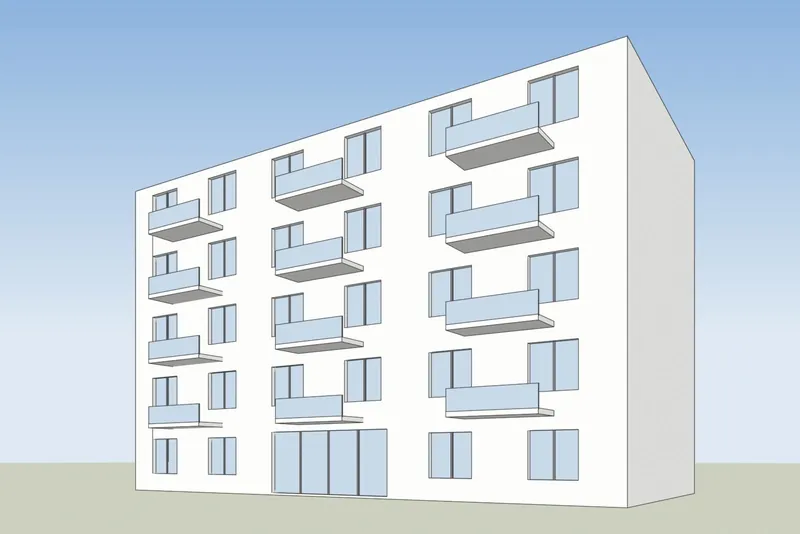
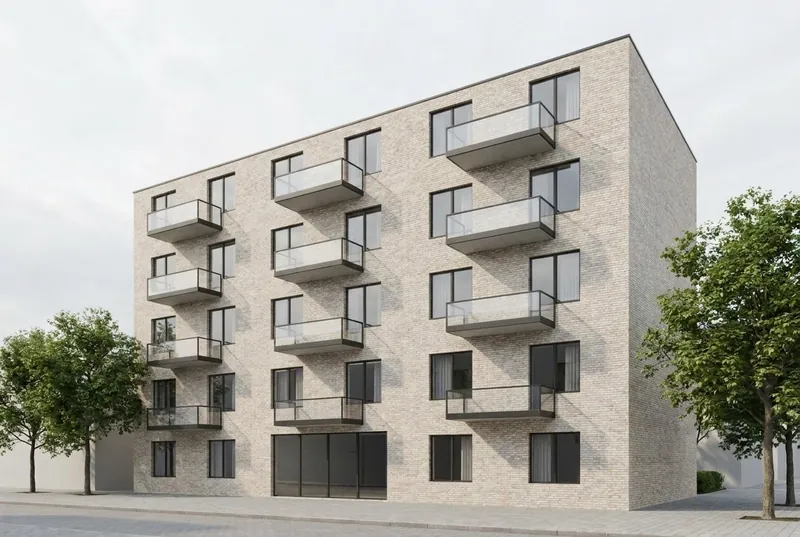
Export a 3D view from Revit as a PNG. Get a photoreal render of the same building.
- 5 free renders and 5 free fixes
- Any Revit version, including Revit LT
- Nothing to install, no card
- Your model file stays on your computer
 3D viewAI render
Examples
A 3D view in, a photoreal render out
The sample models were built in Blender and are shown as plain 3D views, not as Revit files. The render that came back is on the right, not edited.
 3D viewAI render
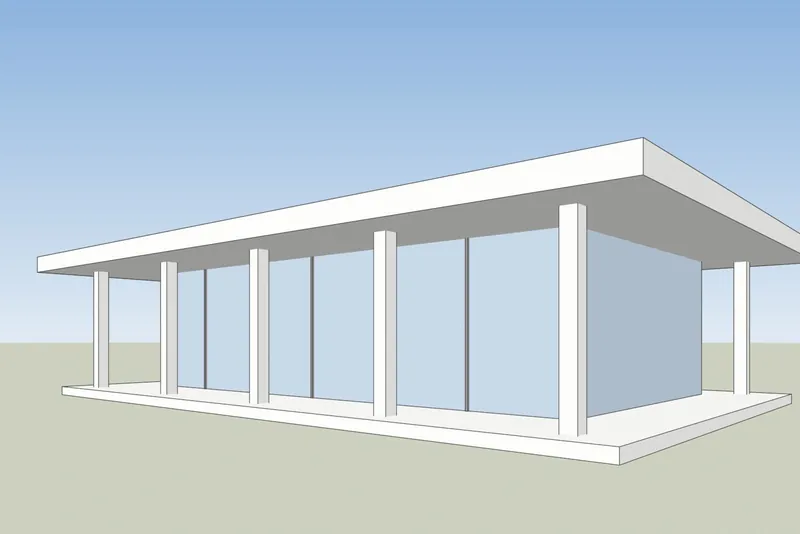
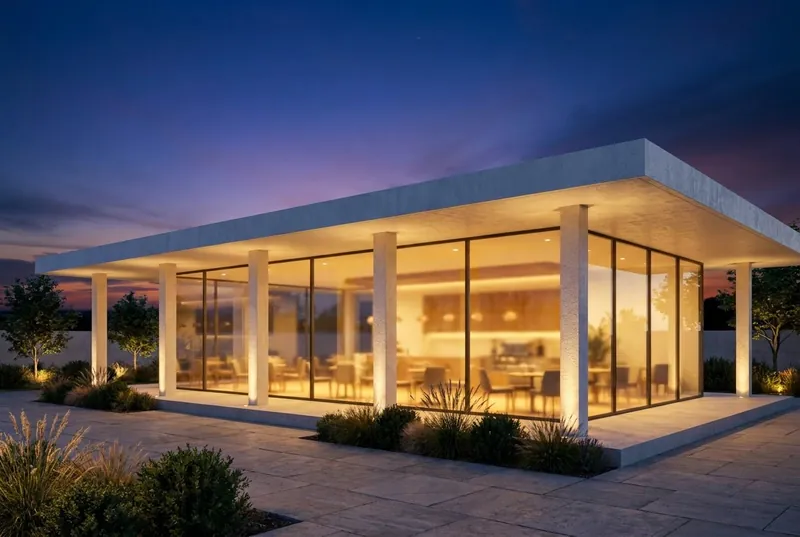
Glass pavilion cafe
A flat roof pavilion at dusk, busy inside and on the terrace. The columns and the roof overhang match the model.
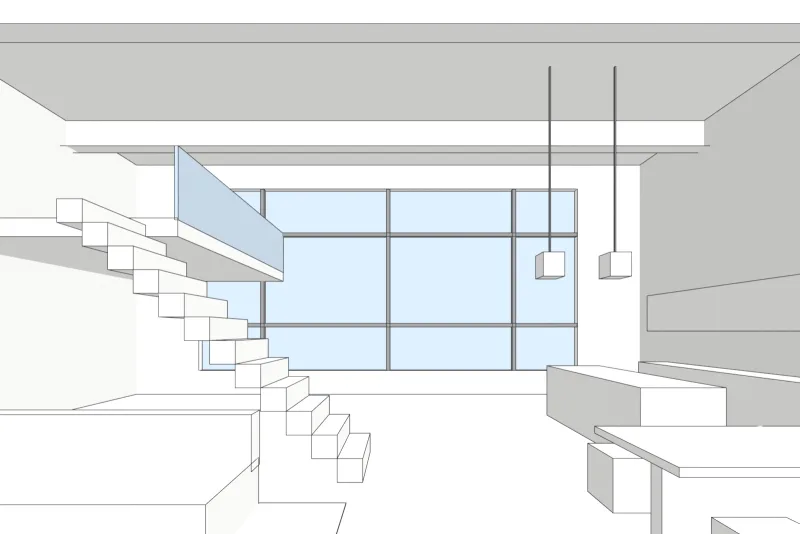
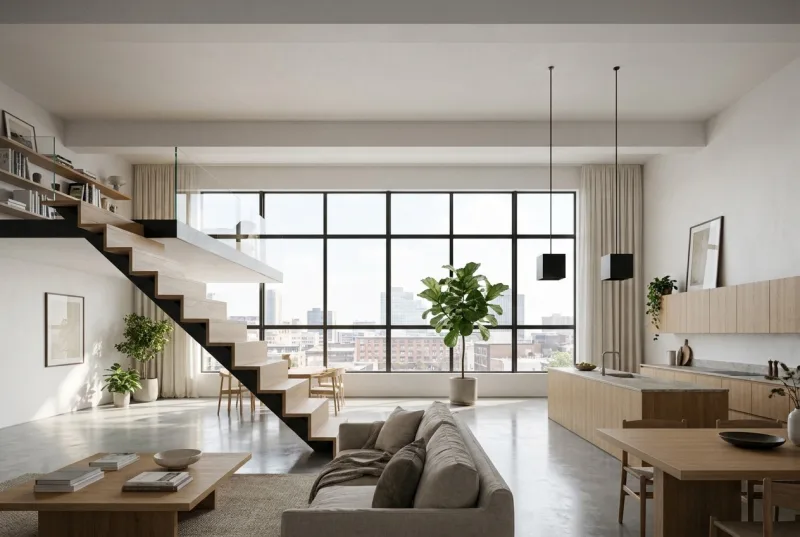 3D viewAI render
Loft apartment
A double height interior in daylight. The steel window grid, the mezzanine and the stair are as drawn, with new finishes and furniture.
Step by step
How to get your Revit view ready
4 steps, and only the export is required.
1. Set up the 3D view
Open a 3D view, or a Camera view for perspective. Use the ViewCube to frame the building the way you want it in the picture. In Visibility/Graphics (VV), on the Annotation Categories tab, clear Grids, Levels and Section Boxes.
2. Choose a plain visual style
In the View Control Bar, set the Visual Style to Shaded or Consistent Colors. Turn shadows off, the AI adds its own light. You do not need Realistic or Ray Trace.
3. Export a PNG
Use File, Export, Images and Animations, Image. Choose PNG and save the file. A screenshot of the Revit window works too, but an export has no toolbars in it.
4. Render it
Upload the PNG, pick daylight, evening sun, dusk or night, and add a short note about materials if you want, such as white render and oak windows.
What to expect
What the AI keeps from your Revit model and what it changes
So you know what to show a client and what to send to our studio.
What stays the same
The shape of the building, the windows and doors, the roofline and the number of floors. The camera angle stays exactly as in your screenshot.
What the AI changes
Materials, light, sky, planting and furniture finishes. Use the note field to steer them, for example white render and oak windows.
What can be simplified
Very fine details, such as thin window bars or small railings, can come out simpler than in the model. For exact final images, use our studio.
What happens to your file
Only the screenshot is sent, never your model file. We do not use your images to train AI, and we do not publish your renders.
Price
AI rendering plans: start free, pay for what you render
Prices in your own currency. Credits never expire, and failed renders are refunded.
Free
For trying one of your own models.
5free renders
€0
No card needed
- Try 1 render every 24 hours, no account
- Fix any area
Good to know
- Personal use
- Small logo
Pro
One architect or designer on live projects.
80HD renders a month
€25 / month
€0.31 per HD render
Billed monthly, cancel any time
- 1 user seat
- 1 render at a time
Everything in Free, plus
- Commercial use
- No logo, 2x upscale
- 5-second videos
- 4K PNG downloads (2 credits each)
- Hide the 3Dstudio.co badge on shared pages
- Client review links
- API and MCP access
Prices include VAT or sales tax where it applies.
Top up without a plan
One payment, and the credits never expire. Any purchase also removes the logo, upscales your renders 2x and unlocks 5-second videos.
Revit AI rendering FAQ
Questions about AI rendering for Revit
Versions, views, files and client work.
Try it on your Revit modelWhich Revit versions work?
Any version that can show a 3D view and export an image, including Revit LT. The tool only needs a picture of the view, so the version does not matter.
Do I need an add-in or plugin for Revit?
No. You export a PNG from Revit and upload it in your browser. Nothing is added to Revit and the model file is never uploaded.
How do I keep the section box and grids out of the picture?
Open Visibility/Graphics (VV) in the 3D view and go to the Annotation Categories tab. Clear Grids, Levels and Section Boxes, then export the view.
Which Revit visual style gives the best result?
Shaded or Consistent Colors, with shadows off. A plain view works best. You do not need Realistic or Ray Trace: the AI adds its own materials and light, unless you choose Keep my materials.
Does it work with Revit interiors?
Yes. Place a camera inside the room, export that view and upload it. The loft above is an interior. Very fine details can come out simpler than in the model.
Can I show a Revit render to a client?
Free renders are for personal use and carry a small 3Dstudio.co logo. Any plan or credit pack allows client work and removes the logo. Pro and up also give you client review links: your client comments on the picture or approves it, with no account.
Revit is a trademark of its owner. 3Dstudio.co is not affiliated with it.
Other programs
AI rendering for your other 3D programs
Any program that can take a screenshot of a 3D view works. These pages have the export steps.
1,200+
Projects completed
13
Years in business
17
Countries delivered to







★★★★★
Rated 4.9 on Clutch · See our reviews
Architects, developers & interior designers
Working for 215 companies since 2013
125 of 220 clients came back
More than half of our clients have hired us again
Try it on your Revit model
Render a Revit view now
5 free renders, no card. Your first render needs no account. You get the image in about 20 seconds.