SketchUp Diffusion: What It Is Now, What It Costs and How to Keep Your Model
SketchUp Diffusion is now called AI Render and runs on AI credits. What it costs in 2026, why it sometimes changes your model, and how to keep it closer.
In this article
- SketchUp Diffusion was renamed AI Render in SketchUp 2026.1 and needs a Go, Pro or Studio plan
- Plans include 100 to 200 credits a month and each output costs 10 credits; plan credits do not carry over
- It paints a new image from your view, so it can add windows or change volumes; plain views and precise prompts keep it closer
- An outside tool fits better on SketchUp Free, older versions, or when credits run out
If you search for SketchUp Diffusion today, you find a YouTube prompt tutorial, Trimble’s AI page and a forum thread of feature requests. The name is the first thing that confuses people. SketchUp Diffusion started as an experimental feature in SketchUp Labs. It is now called AI Render, it runs on credits, and it sits inside a paid SketchUp subscription.
This guide explains what the tool is today, what it costs, why it sometimes redesigns your model, and which settings keep it closer to what you drew. We make an outside tool for the same job, so we also say where SketchUp’s own tool is the easier choice. Every SketchUp fact below comes from SketchUp and Trimble pages read on 5 November 2026. Plans, credit amounts and names change, so check the linked pages before you pay.
What SketchUp Diffusion is now
Trimble’s launch announcement for SketchUp AI, dated December 2025, says: “AI Render, formerly SketchUp Diffusion.” So the feature was renamed, not replaced. It arrived under the new name in SketchUp 2026.1, and the release notes list it as new. The announcement says the tool left the SketchUp Labs beta with a redesigned interface and extra controls: reference images, inpainting and negative prompts. The announcement also bundles it with an AI Assistant under the name SketchUp AI.
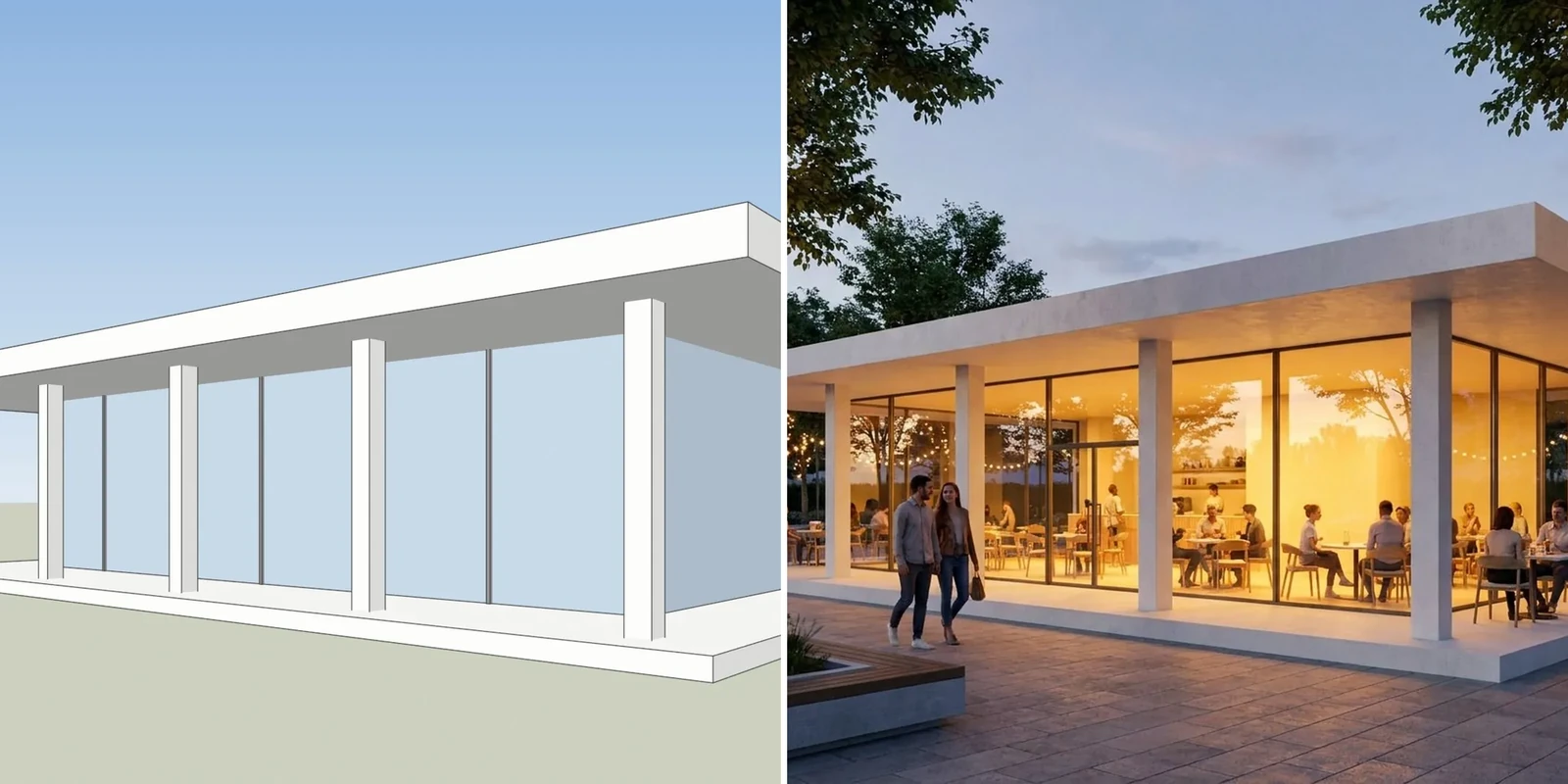
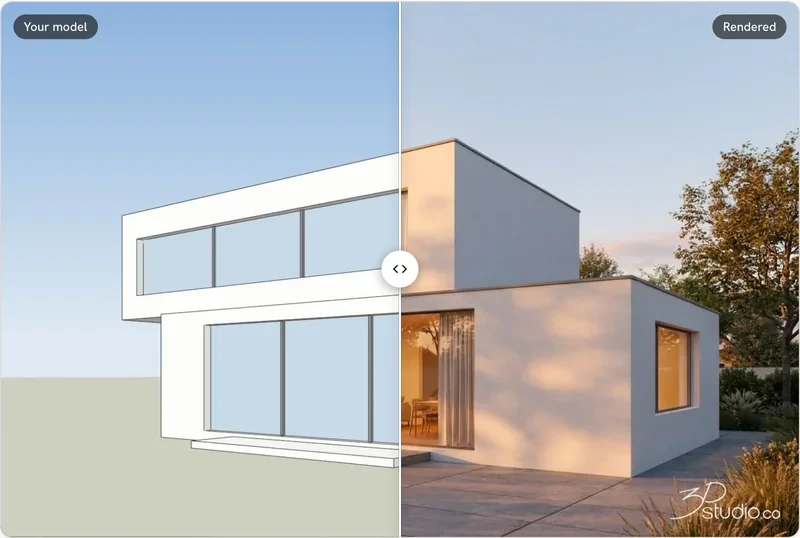
The tool takes a snapshot of your model view and a text prompt or a style preset, and returns a photoreal image. The technical notes describe it as a latent text-to-image diffusion model, and say all current presets and tools use Google’s Nano Banana model. That is why the output is a new image drawn from your view, not a render calculated from your 3D model.
Old guides, videos and forum threads still use the name Diffusion. Their screenshots may show older controls, so what you see in your own SketchUp can differ from them.
Plans and AI credits: what it costs
AI Render needs an active SketchUp Go, Pro or Studio subscription and an internet connection. It is not part of the Free plan. Each subscription includes a monthly allowance of AI credits. The AI Credits page, updated on 4 November 2026, lists these allowances:
Have a 3D model? Our AI Render Studio turns a screenshot of it into a photoreal image in about 20 seconds. Your first render needs no account.
Render your model free| Plan | Credits a month |
|---|---|
| Free | 0 |
| Go | 100 |
| Pro (including Pro Scan, Pro Advanced Workflows and Pro Civil Contractor) | 150 |
| Studio (including Studio for Higher Education) | 200 |
One AI Render output costs 10 credits, whether it comes from a text prompt or from the Sketch, Paint or Erase tools. That means 100 credits give you 10 outputs, 150 give you 15 and 200 give you 20. Generating an object with the AI Assistant costs 30 credits, and the Assistant’s help feature is free.
Other rules on that page:
- Plan credits do not carry over. They reset monthly on your renewal date.
- You can buy more. Credits cost $0.01 per credit, with a minimum purchase of $20 (2,000 credits). At that price one output works out to $0.10. Only the account owner can buy them, and not from SketchUp for iPad.
- Purchased credits expire. They carry over, but only for 365 days after purchase. Plan credits are used first.
- You pay only for results that are saved. Credits are taken when an output is added to your Gallery. If generation fails, nothing is deducted.
- One balance everywhere. The same credits apply on desktop, iPad and the web app.
The same page says that from 9 November 2026 AI Credits become Trimble Credits. The allowances above are the ones listed before that change, so expect the name to differ in the app this week. Trimble’s press release gave no price for the SketchUp AI subscription, so we do not quote one.
Where it runs and what you need
According to the Getting Started page (updated August 2026), AI Render is available in SketchUp for desktop, iPad and the web app. On desktop it is an extension that you install from the Extension Warehouse, and it does not work with versions older than SketchUp 2024. On iPad and the web it is part of the Expanded Toolset.
Inside the tool, you work from a snapshot of the model view. If you change the camera or the aspect ratio of the viewport, the snapshot updates, and you can press Refresh after changing the model. The size of the AI Render window sets the output quality: a larger window gives a higher quality image. SketchUp warns that some monitor setups, such as ultra-wide screens or screens above 4K, can distort the output on desktop. The tools are Text Prompt, Erase, Paint and Sketch. Generation takes about 13 to 20 seconds, the models work best with English prompts, and the Gallery keeps images from the current session and the last 30 days.
What it keeps from your model and what it changes
SketchUp’s pages describe what you can do with the tool, but they do not say how strictly it holds your geometry. The best practices page gives no guidance on preserving layout at all. For that, we rely on what users report.
A tutorial on SketchUp for Design found that the tool follows the geometry well but not exactly. Shapes carried through, while lighting such as reflections and light cones was inconsistent. The author also saw detail erode when the same image was edited again and again. Typical changes were new people, plants and surroundings, different materials and a style taken from a reference image. In general, you should expect this split:
- Usually kept: the overall massing, the camera view and most openings.
- Often changed: materials, colors, light, sky, planting and people.
- At risk: small details such as window bars, railings and chimneys, and anything the model draws as a plain flat face.
Why it sometimes redesigns your model
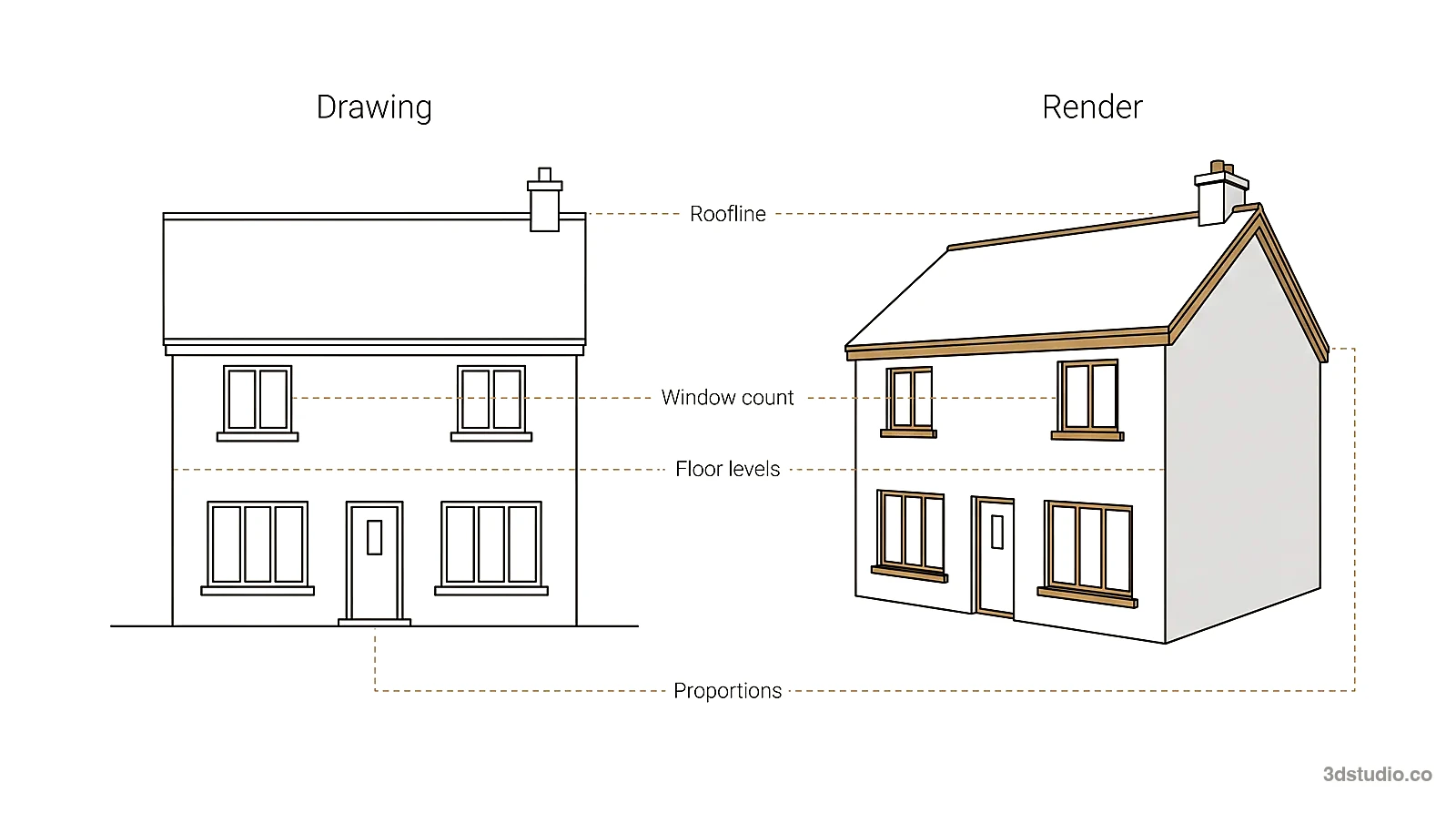
An image model does not read your 3D file. It looks at a picture of your view and paints a new image that matches the picture and the words. Where the picture is plain, such as a flat white wall, it fills the gap with what is common in buildings: a window, a balcony, a different roof edge. That is why a diffusion tool can add things you did not model.
SketchUp users describe this in the forum, and the threads are open to read:
- In an August 2025 thread, a user wanted only a background added. The tool recolored the building and added features, even with a prompt to keep the building. Other users suggested turning off photoreal materials, or rendering twice and joining the images in Photoshop. One reply called Diffusion best for early concept work, not accurate rendering.
- A user in an October 2026 thread about credits said the tool added objects and changed materials when told not to, and that the credits for those results were gone. Others replied that credits work like a monthly membership.
- In an October 2025 thread, a user got very different results from the same scene and the same settings after an update. A reply guessed that the lowest prompt influence setting no longer meant what it meant before.
- In a thread that ran from January 2024 to May 2025, a user reported that pressing Generate moved the camera down in a two-point perspective view. The thread shows no fix.
These are individual reports, not a measured failure rate. They fit what the technology does, and the SketchUp 2017 reply reminds us that setups differ. Treat them as a list of things to check on your own model.
Settings and prompts that keep it closer to the model
None of these steps guarantees an exact result. They reduce the chance of a redesign.
- Prepare the view first. Use a plain style with no photographic textures and a clean camera. Frame the building completely and avoid ultra-wide window shapes. Photoreal materials in the model can add reflections that shift colors, as one forum reply points out.
- Lower the prompt influence. The 2026.1 release notes say you can control how strongly your text prompt influences the result. A lower value leaves more of your picture in place. Older Diffusion versions used a “respect model geometry” setting, and the names differ between versions, so test the slider on one view before you rely on it. The forum thread above shows that zero may not mean zero.
- Name what exists. Describe the building, not a new one. For example: “Two-storey house, flat roof, white render walls, oak windows, same window layout as the model, overcast daylight, eye-level camera.” SketchUp’s best practices page suggests a structure of subject, environment, camera, light and style, and rich material words such as “brushed anodized aluminium” instead of “metal”.
- Say what should be there, not what should not. The same page recommends positive framing. Use the negative prompt for one or two clear items, such as extra balconies.
- Fix areas, not the whole image. Use Erase, Paint and Sketch for one area instead of regenerating everything. Each of these also costs 10 credits, so make the first prompt a good one.
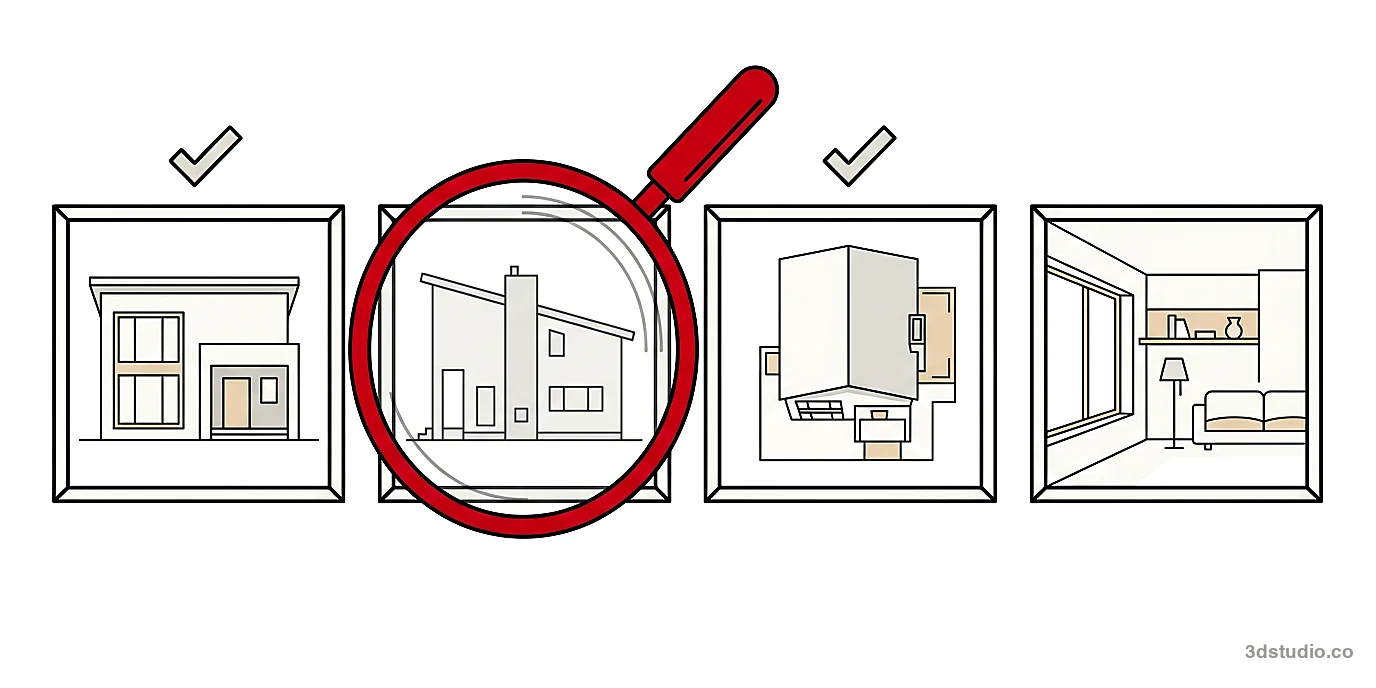
- Keep the original. Save the output and put it beside the model view. Count the windows, the floors and the roof edge. Make material changes in the model when you can, since a re-run of the whole image can remove details that were right.
- Plan your credits. With 100 credits a month on Go you have 10 tries. If most tries end in a redesign, you will run out quickly.
When SketchUp’s own tool is the easier choice
The built-in AI Render has real advantages, and for many people it is the right place to start.
- It is already in your workflow. You press a button in SketchUp, with no export and no second login.
- It has editing tools inside the model view. Erase, Paint and Sketch let you mask an area and change only that area. Our tool has no equivalent drawing tools inside SketchUp.
- Credits are included in your plan. If you already pay for Go, Pro or Studio, you have 100 to 200 credits a month at no added charge, and one balance for desktop, iPad and web.
- It works on iPad and in the browser. You can render from the web app or a tablet as well as the desktop.
If you make a few concept images a month and your plan’s credits cover them, the built-in tool is usually enough.
When an outside tool fits better
An outside tool is worth a look in four cases:
- You are on SketchUp Free or an older version. The built-in tool needs a paid plan, and on desktop it needs SketchUp 2024 or newer. A tool that works from an image does not care which version made it.
- Your monthly credits run out or expire unused. Plan credits reset each month, and the forum shows that this annoys some users. Outside tools price this differently, so compare how credits expire and what happens to a failed render.
- The result must stay close to the model. Some tools are built around keeping the shape. Ours is: it aims to keep the shape of the building, the windows, the roofline, the floor count and the camera.
- You want a second opinion. Running the same view through two tools shows quickly which one respects your model.
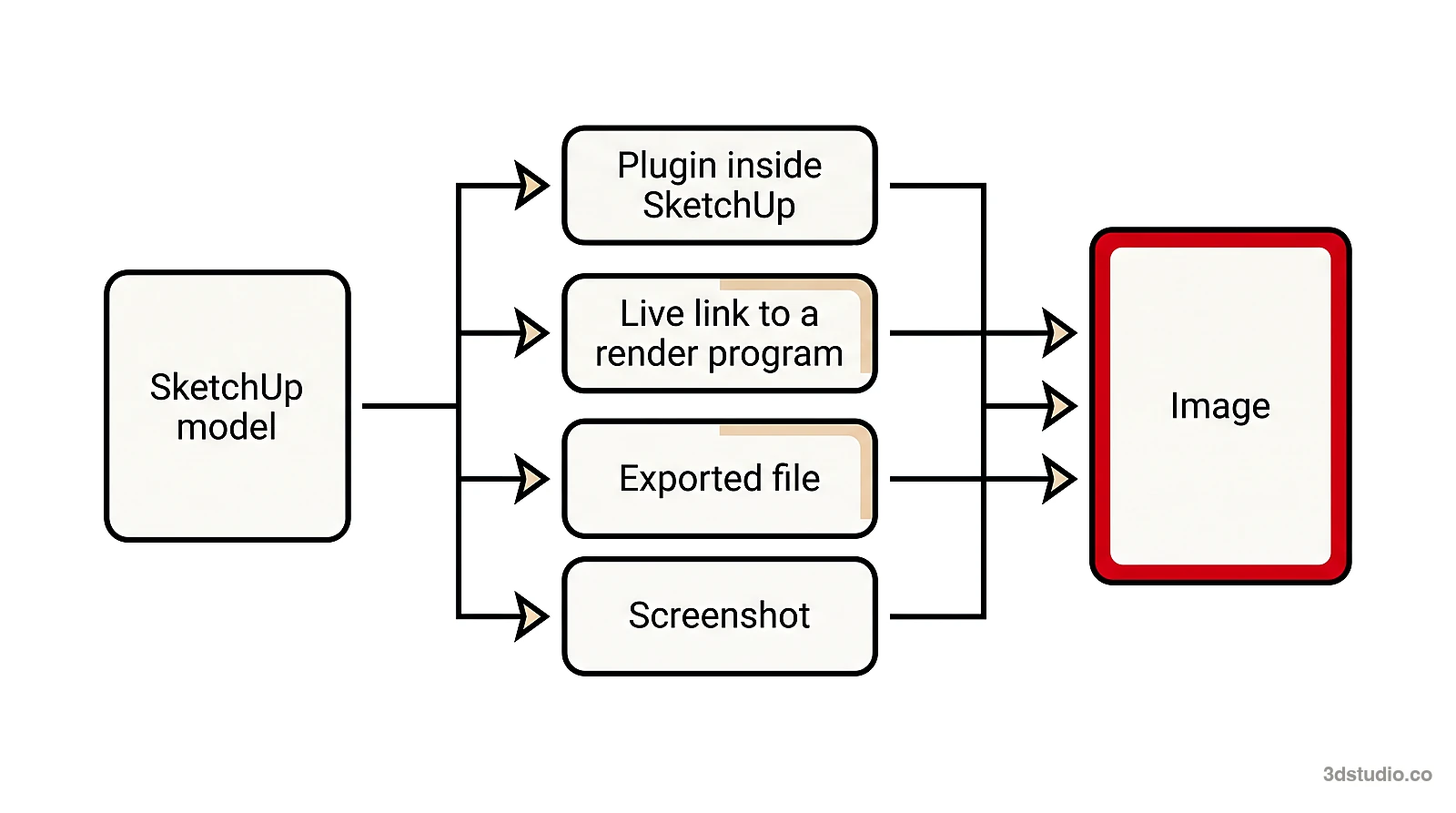
Our AI Render Studio works like this. You export a view from any SketchUp version, including SketchUp Free, as a PNG, or take a screenshot, and you upload it in your browser. There is no extension to install, and your model file is never uploaded. A render takes about 20 seconds, and there are 36 looks, an interior mode, a way to fix one area, a relight option and client review links on Pro and up. If your view is a facade elevation, the render keeps it a straight-on facade with the same layout and no labels. We cover the export step in our SketchUp page, and the wider choice of tools in our guides to how to render in SketchUp and rendering software for SketchUp.
The first render needs no account, and you can make 1 every 24 hours. A free account gives you 5 free renders and 5 free fixes, with a small logo and for personal use only. If the lines drift, the re-run is on us, and failed renders are refunded in credits automatically. Credits never expire, prices include VAT or sales tax, and there is a 14-day refund if you have used no credits. We link to the pricing page rather than copy prices here, because they show in your currency.
Whichever tool you choose, run the same test: export one view of your own model, render it twice, and compare the windows, floors and roof line with the model. For a comparison of other AI tools, read our AI rendering software guide. Try your own view and see the result next to your model.
When to use a studio instead
Both SketchUp’s tool and ours make images for options, early concepts and quick client talks. Neither checks the image against your drawings. For planning, a competition jury or a sales launch, every detail must match, and a person should check it. For those images we build the 3D model from your drawings and check it against them. See our architectural visualization service. We are a studio with 1,200+ projects since 2013, rated 4.9 on Clutch. For when to pick CGI over AI, read CGI vs AI rendering.
Questions about SketchUp Diffusion
Is SketchUp Diffusion still available?
Not under that name. Trimble renamed it AI Render, and it is part of SketchUp 2026.1 and the SketchUp AI bundle. Older guides and the forum still say Diffusion.
Is SketchUp Diffusion free?
It is not part of the Free plan. Go, Pro and Studio include 100, 150 and 200 AI credits a month, and one AI Render output costs 10 credits. You can buy more credits at $0.01 per credit, with a minimum purchase of $20.
Do I need a plugin for it?
On desktop it is an extension you install from the Extension Warehouse, and it needs SketchUp 2024 or newer. On iPad and the web it is part of the Expanded Toolset.
Can I use AI Render in SketchUp Free?
No. It needs an active Go, Pro or Studio subscription. You can export a view from SketchUp Free as a PNG and use an outside tool instead.
Why does it add windows or change the shape of my building?
It paints a new picture from a snapshot of your view and does not read your 3D file. Plain areas get filled with typical building details. Use a plain view, a lower prompt influence, a prompt that names what exists and the Erase and Paint tools for single areas.
Do credits roll over?
Plan credits reset each month on the renewal date. Purchased credits carry over but expire 365 days after purchase. Nothing is deducted if a generation fails.
SketchUp is a trademark of Trimble Inc. 3Dstudio.co is not affiliated with Trimble.
Diagrams in this post are drawn with an AI image tool from our brief and checked by our team.
More on AI rendering: AI Render Studio · SketchUp AI rendering · Twinmotion Price in 2026: Free Tier, Seats and Real Costs · D5 Render Price in 2026: Community, Pro, Teams and Real Costs · Lumion Price in 2026: Every Plan, Real Costs and a Cheaper Route · V-Ray Price in 2026: Plans, Licenses, Host Programs and a Cheaper Route · Enscape Price in 2026: Every Plan, What It Includes and a Cheaper Route · Nano Banana Architecture: How to Keep Your Design in AI Renders · AI Rendering for Architects: How to Keep Your Design · ArchiVinci Alternative: An Honest Comparison for Architects · Gendo AI Alternative: An Honest Comparison for Architects · mnml.ai Alternative: An Honest Comparison for Architects · Rendair Alternative: An Honest Comparison for Architects · Best AI for Architectural Rendering: What It Does and When to Use a Studio