AI Rendering for Architects: How to Keep Your Design
A practical guide to AI rendering for architects: why AI changes your design, how to prepare a clean input, what to check in each render and which credit terms to read first.
In this article
- AI render tools paint a new picture from your screenshot, so they can add windows or change a roofline
- A plain shaded view with no shadows and an eye-height camera gives the AI less to guess
- Check windows, roofline, floor count and camera in every render, and read the refund terms before you pay
- Use AI for options, and a studio when the image must match the drawings
AI rendering turns a view of your model into a photoreal image in seconds. For an architect, the useful question is not whether the image looks good. It is whether the image still shows your building. Many AI tools add a window, move a roof line or drop a floor, and the result is a nice picture of a different design.
This guide is for architects who want to use AI rendering without losing control of the design. It covers where AI rendering helps at each stage, why it changes designs, what to check in every result, how to prepare a clean input, and what to look for in credits and refunds before you pay. We make an AI render tool, so we say which parts of this advice are about our own product.
The numbers on problems come from 52 public reviews and forum posts we read in November 2026, about AI render tools for architects. One post can mention more than one problem. 21 of them said the render changed the building: extra windows, new volumes, a different facade. 21 said they paid credits for failed or invented results. 13 were about billing and cancelling, 12 about results that differ from one run or view to the next, and 10 about slow support. Those five problems shape the rest of this guide.
What AI rendering is good for at each design stage
AI rendering is not one thing in a project. Its value changes with the stage, and so does the risk of a wrong detail.
- Early massing and options. A grey model view becomes a rendered image with materials and light. You compare 3 or 4 directions in an afternoon. A moved window does little harm here, because the model is still changing.
- Design review inside the office. A render helps colleagues judge materials, proportions and daylight. Here you want the building to stay the same, so the discussion is about the design and not about the picture.
- Client presentations. The render now stands in for the design. A wrong window count is a wrong promise. Check every image against the model.
- Planning, competitions and sales. Images must match the drawings in every detail, and someone must be able to stand behind them. This is where a person builds and checks the 3D model. See the last section.
Our comparison of CGI and AI goes further into this split. The short version: AI is fast and good for options, and it needs a human check before an image leaves the office.
Why AI renders change your design
Most AI render tools are picture models. They look at your screenshot as pixels and paint a new image that resembles it. They do not read the geometry of your model. Where the screenshot is clear, the picture usually follows it. Where it is flat, small or ambiguous, the model guesses, and a guess is often a plausible window, a taller roof or a different balcony.
Have a 3D model? Our AI Render Studio turns a screenshot of it into a photoreal image in about 20 seconds. Your first render needs no account.
Render your model free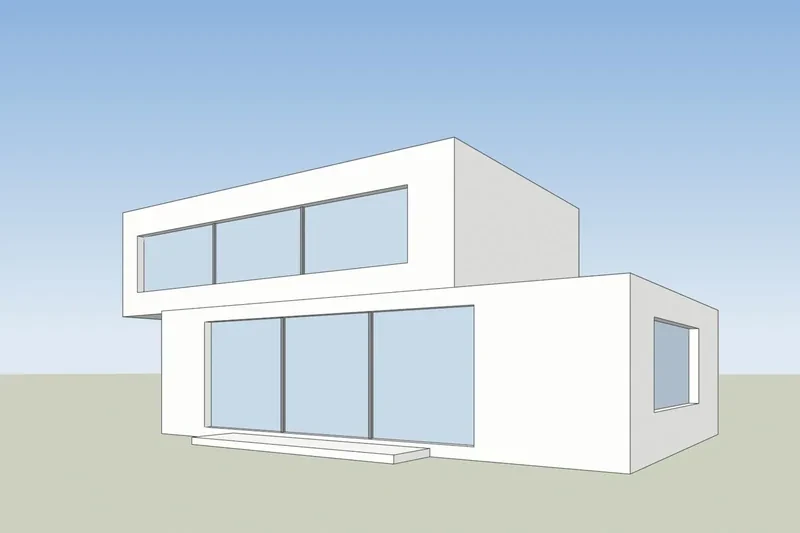
That explains the pattern in the reviews we read. People wrote about windows added where the model had none, volumes that changed after repeated instructions to keep them, and fixes that removed parts that were right. Edits made it worse, because each edit asks the model to paint again.
It also explains why a prompt such as “do not change the building” works poorly. A prompt asks the model to be careful. It does not give the tool a way to hold your geometry. What does help is a clean input, a tool that aims to keep the shape, and a habit of checking the result. The next three sections cover those.
What to check in every render
Put the render next to your model view and check the same 5 things every time. It takes about a minute.
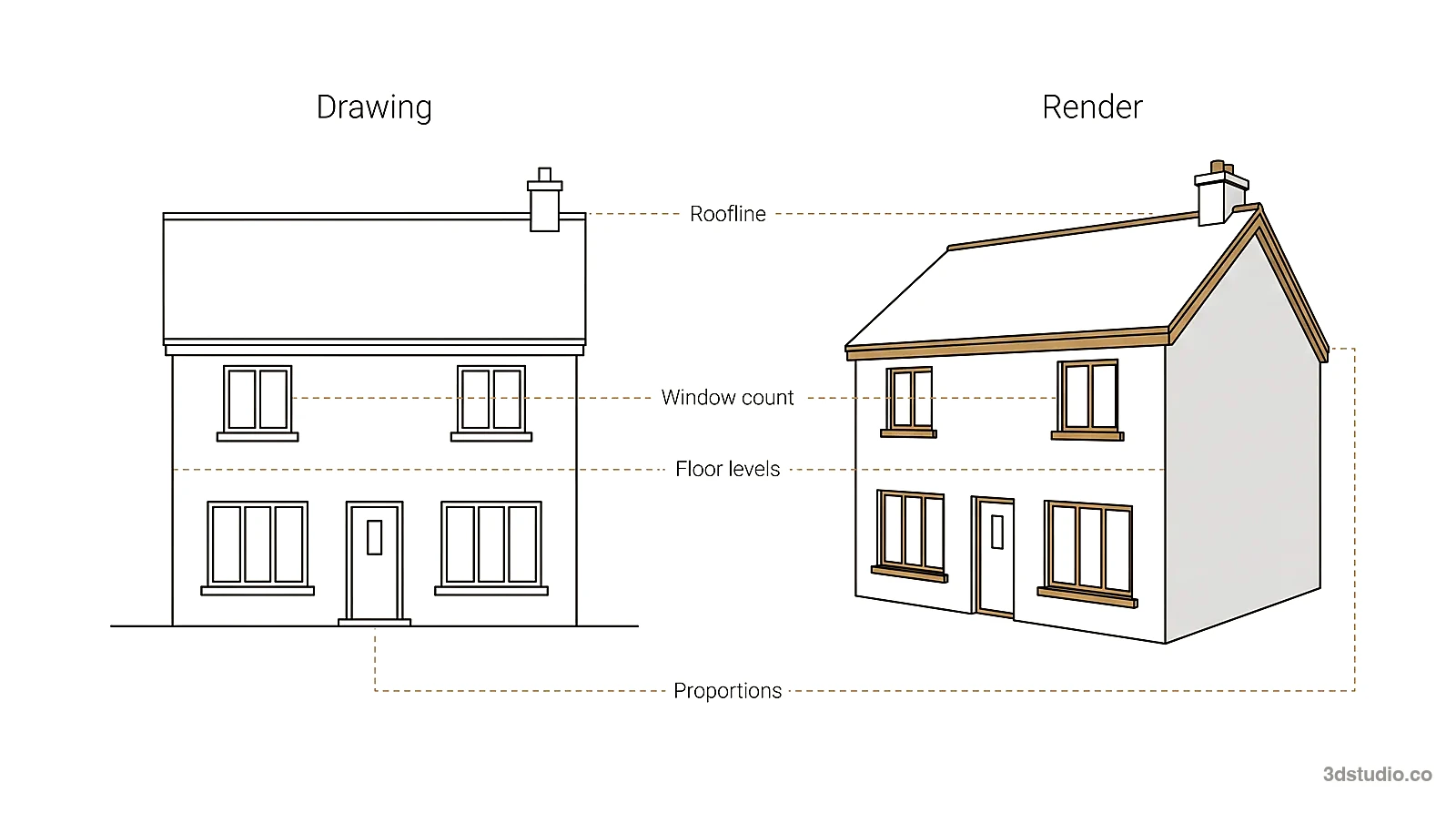
- Windows. Count them on each facade and compare the rhythm. Added, merged and missing windows are the most common change.
- Roofline. Check the ridge height, the pitch, parapets and any roof terrace or plant.
- Floor count and floor heights. A building can gain or lose a storey, or the bands between floors can shift.
- Volumes and setbacks. Look at balconies, recesses, cantilevers and steps in the plan.
- Camera. The view angle, the height of the horizon and the vertical lines should match the input. A shifted camera makes a building look taller or squatter.
Zoom in on the small things. Thin mullions, railings and chimneys are the first details a picture model smooths away. For facade elevations, the render should keep a straight-on facade with the same layout and no labels or text added across it.
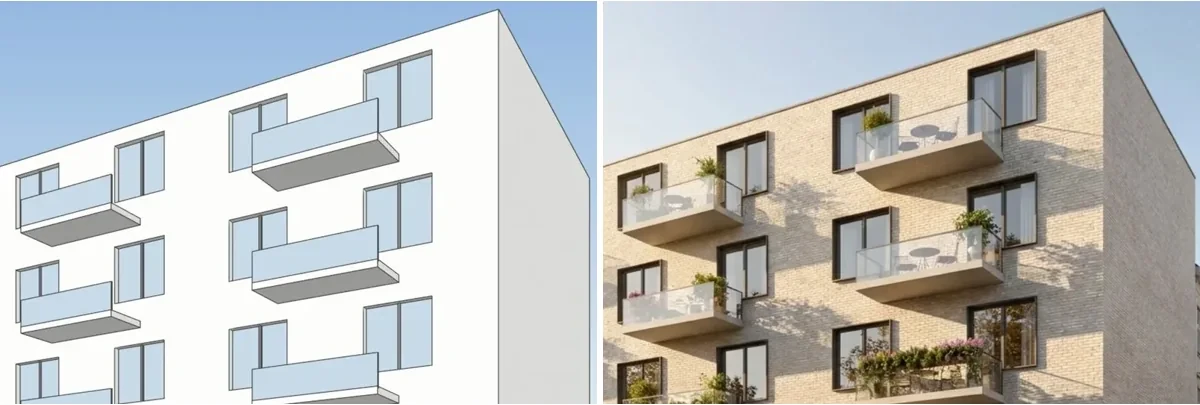
New planting, cladding, people and sky are fine. They are what you asked for. Changes to the structure of the building are the ones to reject.
How to give the AI a clean input
The input decides much of the result. A screenshot that is easy to read gives the model less to guess.
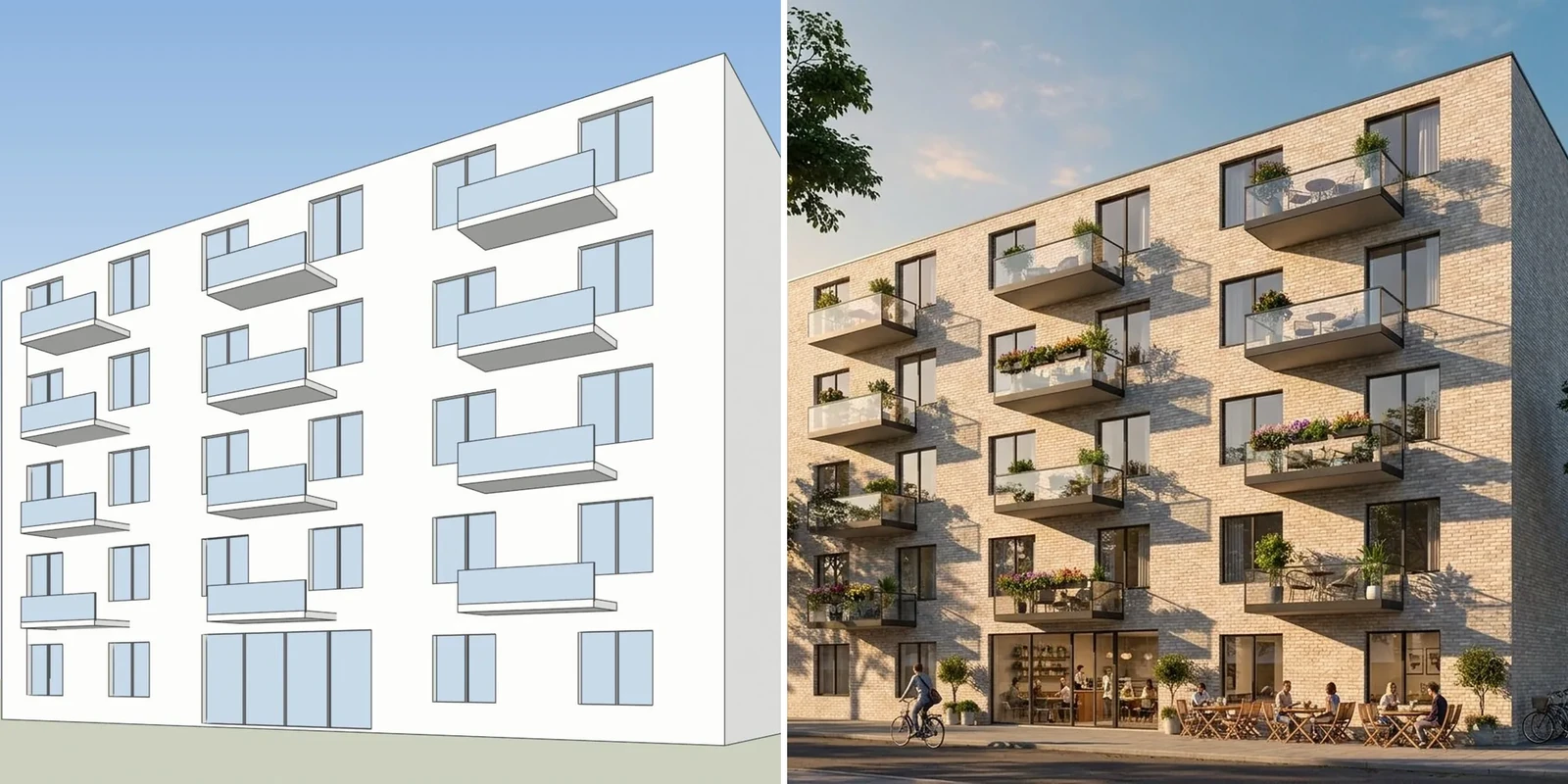
- Use a plain shaded view. Show the model as solid white or grey volumes. Turn off textures that confuse edges, and avoid a busy background.
- Turn off cast shadows. Hard shadows on the screenshot are read as dark surfaces or as extra openings. Let the AI add light.
- Hide section planes, labels, dimensions and grid lines. The model may paint them into the image.
- Set the camera at standing eye height for street views, with vertical lines kept vertical. Use a clear aerial angle when you need an overview. Do not start from an already distorted wide-angle view.
- Frame the whole building. Cropped corners and roof edges are invented by the model.
- Keep the file simple. A PNG or screenshot of the view is enough. Save the exact input with the render, so you can repeat a view later.
The same rules apply in any modeling program. Our SketchUp AI rendering page shows how to export the right view, and the steps are similar in Revit, Rhino and Archicad. Our guide to files needed for 3D rendering covers what a studio asks for when the job goes beyond a screenshot.
For a 2D plan, use a tool built for plans. Our floor plan mode turns a plan into a top-down 3D plan or an eye-level room view.
Credits and refunds to check before you buy
In the reviews we read, 21 complaints were about credits and 13 about billing. The pattern was the same: paying for a failed or invented result, credits that disappeared, and charges that continued after cancelling. Before you pay any AI render tool, ask these questions and find the answers on its pricing and terms pages.
- What happens when a render fails? Look for an automatic refund in credits, not a support ticket.
- What happens when the render changed my design? Look for a stated rule, such as a free re-run, not a promise to “do your best”.
- Do unused credits expire? Some tools remove them at the end of a month or on cancelling.
- Do edits cost extra? If every fix uses more credits, one good image can cost several.
- Is tax in the price? A price before VAT or sales tax is not the price you pay.
- Can you cancel and get a refund? Check how to cancel, what a renewal costs, and whether unused plans can be refunded.
- Who answers? Send the support address a question before you buy and see how long it takes.
For our own tool, the answers are on the AI Render Studio pricing page: failed renders are refunded in credits automatically, a free re-run is offered if the lines drift, credits never expire, prices include VAT or sales tax, and there is a 14-day refund if no credits were used. We link to the page instead of copying prices, because they are shown in your currency.
Consistency across a set of views
A single good render is easy. A set of 4 views of one building that all agree is hard. Architects in the posts we read called this the blocker for professional use: the same input gave a different result, a revised view could not be recreated, and materials changed from one image to the next.
A few habits reduce the problem:
- Render every view from screenshots of the same model, with the same settings and the same style.
- Save each input screenshot and each setting, so you can repeat a view when a client asks for a change.
- Name the exact materials in the prompt, for example white render and oak cladding, instead of a loose style word.
- Change the model and render again, instead of editing the image over and over. Each edit asks the AI to repaint, and detail is lost every time.
- Check windows and openings against your drawings before you print or send anything.
If the set has to match exactly, for example in a planning submission or a sales launch, AI is the wrong method for the final images. Use it for options, and have the final set made from the 3D model.
How our AI Render Studio handles these problems
The AI Render Studio is built around the problems above. You upload a screenshot or PNG of a 3D model from any program and get a photoreal render that aims to keep the building’s shape, windows, roofline, floor count and camera. A render takes about 20 seconds. It also keeps facade elevations straight-on: a facade elevation stays a straight-on facade with the same layout and no labels.
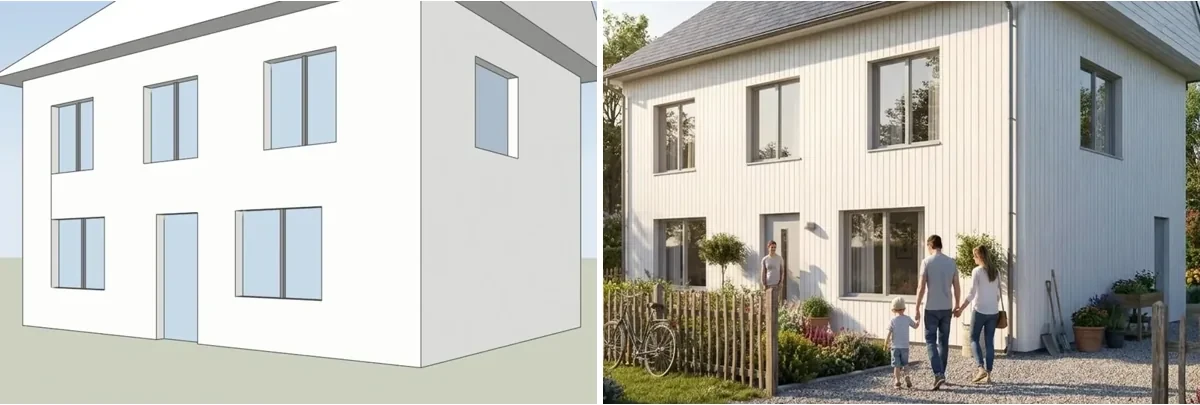
- The first render needs no account. You get 1 free render every 24 hours without one. A free account gives 5 free renders and 5 free fixes, with a small logo, for personal use only.
- If the lines drift, the re-run is on us. Failed renders are refunded in credits automatically.
- Fix one area, relight, or make a short video. You can fix one area of a render, relight it, and make a 5-second video from a render on paid plans.
- Interior and plan modes. There is a separate interior mode, and a floor plan mode that turns a 2D plan into a top-down 3D plan or an eye-level room view.
- Review links. On Pro and up you send your client a link. The client needs no account.
- 36 looks, plus ChatGPT and Claude. There are 36 looks, and a connector for ChatGPT and Claude.
It is still AI. You still check every render against your model, with the checklist above. Your first render needs no account, so you can test it on your own model before you decide. Compare it with other tools in our list of the best AI rendering software and our piece on AI rendering against V-Ray and Enscape.
When to use a studio instead
Use AI while the design is moving, and for early images you check yourself. Use a studio when the image has to be right.
- A planning application or verified views, where the building must be placed exactly.
- A competition board or a jury, where a moved window is noticed at once.
- A sales launch or brochure, where the same building must look the same in every image.
- A set of exteriors, interiors and plans that must agree with each other.
In those cases we build the 3D model from your drawings and check it against them. Our architectural visualization service does that, and we have worked on 1,200+ projects since 2013 and are rated 4.9 on Clutch. Many architects use both: AI for options, then a studio for the images that go public.
Questions about AI rendering for architects
Short answers to what architects ask most.
Why does AI add windows to my render?
A picture model paints a new image that resembles your screenshot. It does not read your geometry, so where the view is unclear it guesses. A plain shaded view without shadows gives it less to guess.
Can AI rendering keep my design exactly?
No AI tool can promise it. Choose a tool that aims to keep the building’s shape and has a clear rule for when it fails, and check every render against your model.
What is the best input for an AI render?
A plain shaded screenshot of the whole building, with no cast shadows, labels or section planes, from a camera at standing eye height with vertical lines kept vertical.
How many credits does a bad render cost?
That depends on the tool. Look for automatic refunds for failed renders and a free re-run when the result changed your design, before you buy.
Is AI rendering good enough for client work?
For options and early presentations, yes, if you check each image. For planning and sales images, use a studio. You can try a first render without an account and judge on your own model.
Diagrams in this post are drawn with an AI image tool from our brief and checked by our team.
More on AI rendering: AI Render Studio · SketchUp AI rendering · Twinmotion Price in 2026: Free Tier, Seats and Real Costs · D5 Render Price in 2026: Community, Pro, Teams and Real Costs · Lumion Price in 2026: Every Plan, Real Costs and a Cheaper Route · V-Ray Price in 2026: Plans, Licenses, Host Programs and a Cheaper Route · Enscape Price in 2026: Every Plan, What It Includes and a Cheaper Route · Nano Banana Architecture: How to Keep Your Design in AI Renders · SketchUp Diffusion: What It Is Now, What It Costs and How to Keep Your Model · ArchiVinci Alternative: An Honest Comparison for Architects · Gendo AI Alternative: An Honest Comparison for Architects · mnml.ai Alternative: An Honest Comparison for Architects · Rendair Alternative: An Honest Comparison for Architects · Best AI for Architectural Rendering: What It Does and When to Use a Studio