Nano Banana Architecture: How to Keep Your Design in AI Renders
Nano Banana and other general image models repaint a picture from a prompt. Here is why that can change your design, 8 tips to keep it, and what to check in every render.
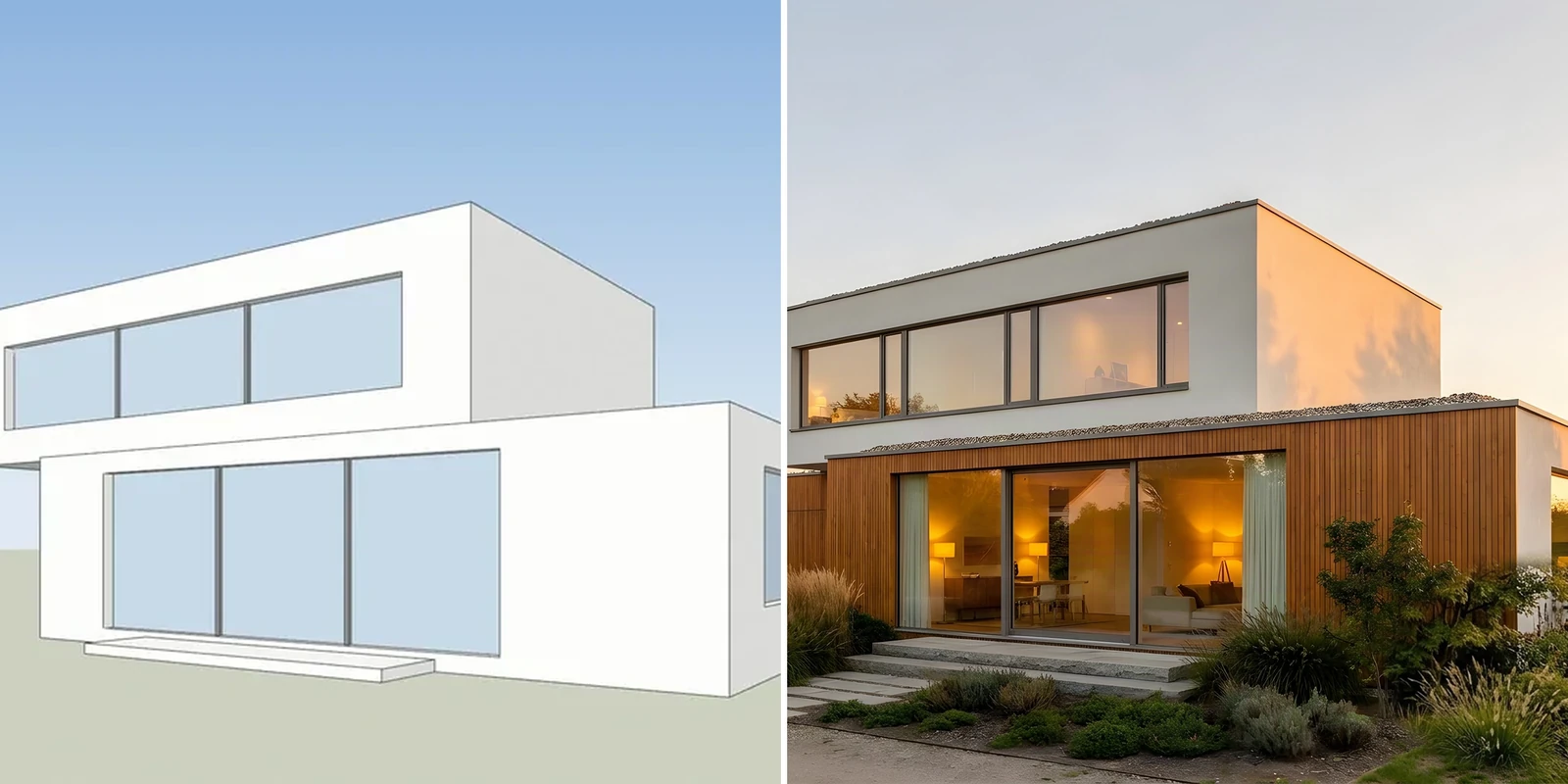
In this article
- General image models such as Nano Banana in Gemini repaint a picture from a prompt and do not read your 3D geometry
- That is why windows, proportions, floors and the camera can change when you prompt freely
- A plain input, one change per request, a list of what must not change and a check of windows, roofline and floor count keep most of your design
- AI Render Studio adds design-keeping controls for work that has to match the model
Nano Banana is Google’s image generation and editing tool inside the Gemini app, and many architects now try it on their own models. The first results are often impressive. Then a second look shows an extra window, a roof that is a little flatter, or a facade that has been tidied into something the designer never drew. That is why “nano banana architecture” is a search people make: they want the speed of a general image model and the building they actually designed.
This guide explains why general image models do this, gives 8 tips that work in Gemini or ChatGPT, and shows what to check in every result. At the end we describe where our AI Render Studio fits, because it adds controls built for keeping a design. Facts about Nano Banana come from Google’s own pages, read on 5 November 2026: the Gemini image generation page, the Gemini announcement and the developer documentation.
What Nano Banana is, and what it does well
On its Gemini page, Google describes Nano Banana as its image generation and editing tool in the Gemini app. You pick the image tool, write a prompt or upload a photo, and ask for a change. Google says the tool can change a background, replace an object or add an element “while preserving the details you love”. The page lists a free version, Nano Banana 2, and a top version, Nano Banana 2.1, that needs a Google AI plan. Paid plans give higher generation limits.
Google’s announcement says the tool can blend photos, apply the style of one image to another and make edits over several turns that change parts of an image and keep the rest. The developer documentation calls multi-turn conversation the recommended way to iterate on an image, and says all generated images include a SynthID watermark. Gemini also adds a visible watermark, so plan for the mark when a render goes to a client.
These tools are strong, and the free version makes them easy to test. For mood images, material ideas, a quick change of season or a rough concept for a client chat, a general image model is a reasonable first stop. ChatGPT’s image tools are the other common route, and the advice below applies to any general-purpose image tool that you prompt in plain language.
Why a general image model changes your design
A general image model repaints a picture from a prompt. It does not open your 3D model, and it does not read your geometry. It sees one image: a grid of pixels, plus your words. From that it produces a new picture that fits the words and looks plausible. It has no copy of your model to compare against.
Have a 3D model? Our AI Render Studio turns a screenshot of it into a photoreal image in about 20 seconds. Your first render needs no account.
Render your model freeThat has practical results for a building:
- Windows appear, move or merge. A flat wall with no openings looks unfinished to a model trained on photographs of buildings, so it may add some. A long ribbon window may be split into 4 panes.
- Proportions drift. A roof can get a little thicker, a cantilever a little shorter, a floor a little taller. Each change is small, and together they make a different building.
- The camera moves. A request such as “make it more dramatic” can change the angle, the lens or the crop, so the render no longer lines up with your drawing.
- The facade gets tidied. Irregular spacing or an odd detail that you chose on purpose may be evened out into the typical version.
- Floors are added or lost. This happens most when the input is a small sketch or a cropped view.
Architects who talk about general image tools in public forums describe the same few problems: windows where the model had none, volumes that changed, and a view that cannot be recreated when the client asks for a revision. None of this is a fault in one product. It is how a tool behaves when it is prompted freely and has no geometry to hold on to. The way to work with it is to give it less room to be creative and to check what comes back.
The same point appears in our guide to the difference between CGI and AI: an AI image changes when you change the prompt, while a render from a 3D model changes when you change the model.
What to check in every result
Put the render and your original view side by side, or lay the render over the original at half opacity in any image editor and flip between them. Then go through this list.
| Check | What to look for | Where it usually slips |
|---|---|---|
| Windows | Count them per facade and compare their positions and sizes | New windows on blank walls, ribbon windows split or merged |
| Roofline | Roof shape, thickness, overhang and parapet height | Flat roofs gain a pitch or a thicker edge |
| Floor count | Count floor lines or balconies from the ground up | A floor added or dropped, floor heights evened out |
| Camera | Angle, lens feel and crop against your original view | A wider or lower view after a vague style request |
| Volumes | Set-backs, cantilevers, the footprint where walls meet the ground | Corners that are rounded or pushed out |
| Facade elevation | A straight-on elevation should stay straight-on | Perspective added, labels or dimension text redrawn as shapes |
If one check fails, do not accept the image because the rest looks good. A client will find the extra window faster than you will.
8 tips for keeping your design in Gemini or ChatGPT
These habits give a general image model less to change and make the changes easier to see. They cost nothing and work in either tool.
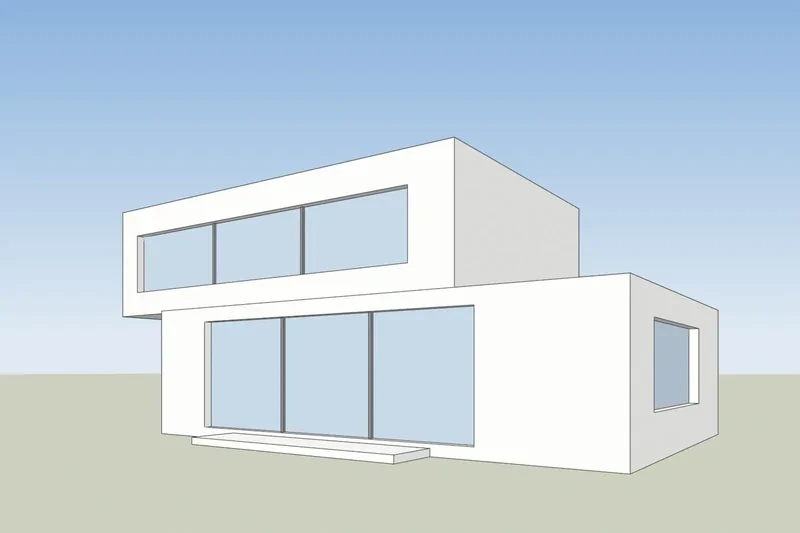
- Start from a clean, plain shaded view. Export a screenshot in one flat colour or light grey shading, with no textures, no dimension lines, no labels and no program toolbars in the frame. Anything on the image can be read as part of the design. Make the picture large enough that the windows are clear.
- Ask for one change per request. “Add brick” is a request. “Add brick, evening light, people, a tree and a wet street” is five requests, and each is a chance to move something. Do the material first, then the light, then the extras.
- Say what must not change. Name the parts: “Keep the building’s shape, the position and size of every window, the roofline, the number of floors and the camera angle exactly as in the input.” Google’s own developer documentation uses the instruction “Do not change any other elements of the image” in an editing example, and a longer list that names your parts is the same idea.
- Keep the camera. Write “same camera angle and framing” in each request, and avoid words that imply a new view, such as “dramatic”, “wide” or “aerial”. If you want another view, export it from your model.
- Do not ask for “improvements”. Words such as “make it more modern” or “improve the facade” invite a redesign. Describe materials and light instead: “light timber cladding, warm evening sun”.
- Check windows, roofline and floor count every time. Use the list above. Make it a habit before you look at the mood of the image.
- Iterate in one thread, and restart from the original when it drifts. Google’s documentation recommends multi-turn conversation for iterating on an image. If a detail has changed by the third or fourth turn, go back to your original input and write the prompt again with the change you want, instead of fixing the fix.
- Save the input and the prompt. Keep the original screenshot and the exact wording that worked. You will need both when a client asks for a variation next week.
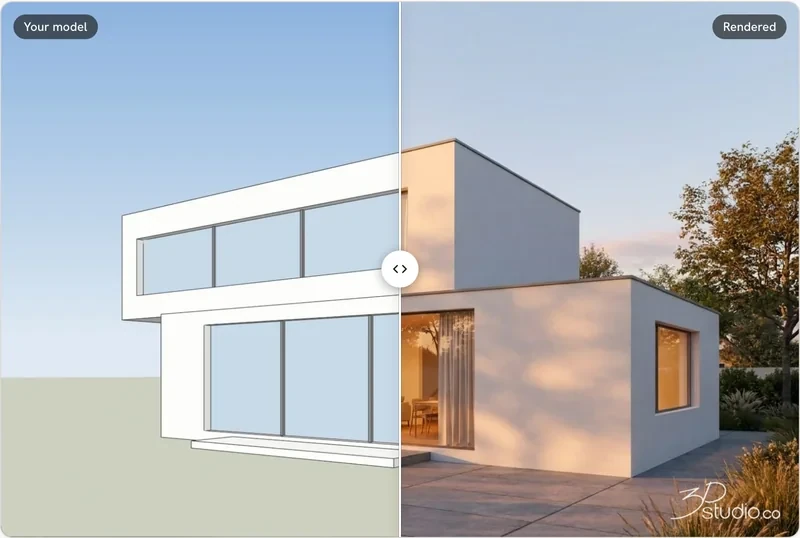
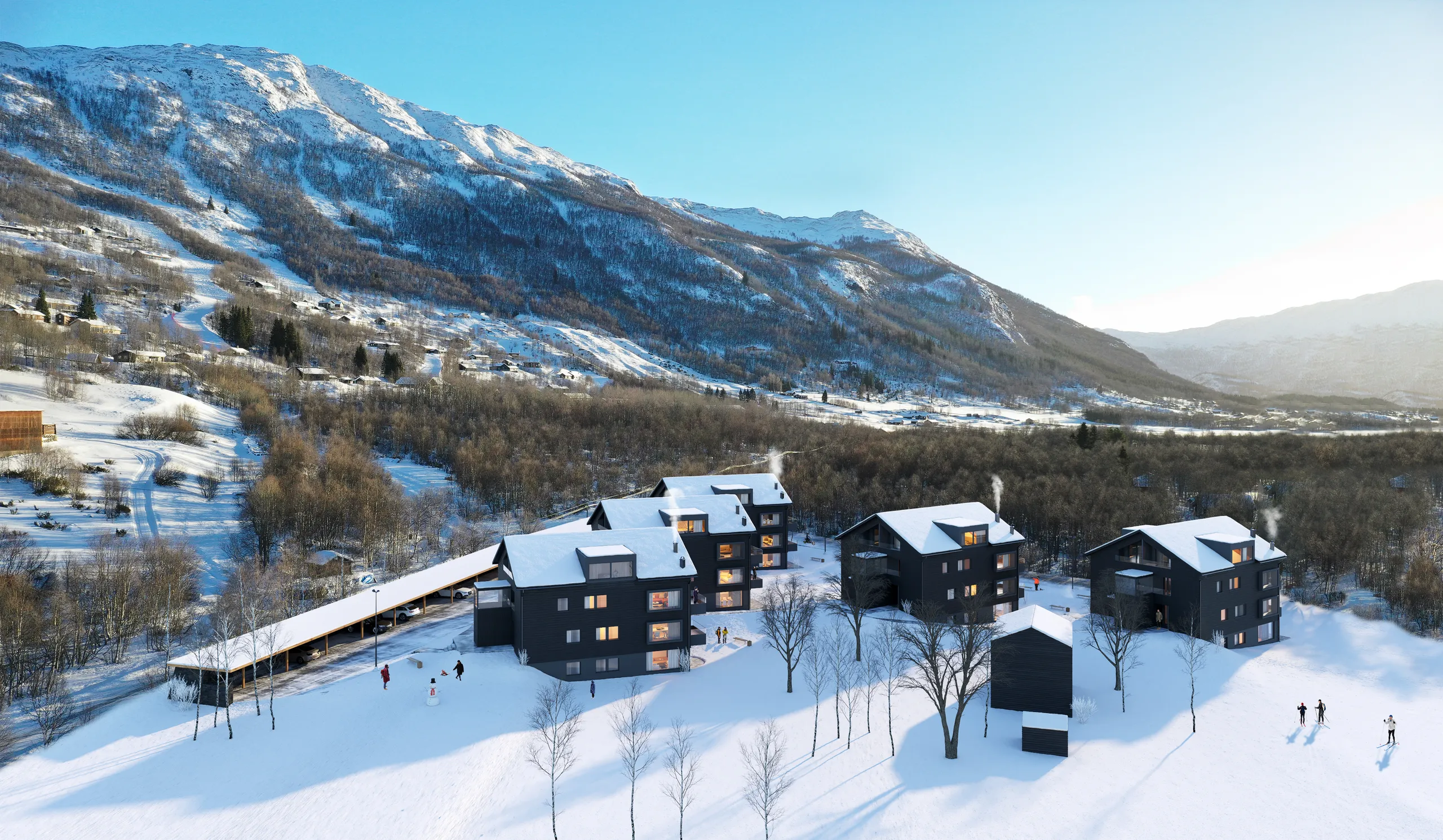
That picture shows the aim of every tip above: the surface of the image changes a lot, and the geometry of the building does not.
Keeping a set of views consistent
One good image is easy. A set of 3 or 4 views of the same building that agree with each other is harder, and it is what a client pack needs. A general image model treats each request as a new picture, so the brick can change colour between views and a balcony can move.
- Export every view from the same model. Do not ask the tool to “show the back” of a building it has only seen from the front. Move the camera in your model and export a new view.
- Use the same wording for each view. Copy the material and light sentences from the first prompt into every later one, and change only the camera name.
- Fix the light before the details. Pick one time of day for the whole set.
- Do not feed a render back in as the next input. Each round adds small changes. Start every view from a clean screenshot of your model.
- Compare the views with each other. Check that the cladding, the window frames and the balcony rails match across the set, as well as against your model.
When a general tool is enough, and when it is not
A general image model is a good fit when the image is a conversation starter: early concepts, material and mood ideas, a quick sketch pass for a client chat, or a private study. If it comes out slightly different from your model, that costs little.
It is a weaker fit when the image has to match the model. That includes planning submissions, competition boards, sales material and anything a client will measure against the drawings. For those, the checks above become real work on every image, and a tool that holds the design for you saves that time. For images where every detail must match the drawings, we build the 3D model from your drawings and check the result by hand, as described on our architectural visualization page.
Where AI Render Studio fits
The AI Render Studio is a tool for one job: you upload a screenshot or PNG of a 3D model from any program, and you get a photoreal render in about 20 seconds. It aims to keep the building’s shape, windows, roofline, floor count and camera. It was made for the problem this article is about, so the habits above are built into it instead of being rules you have to remember.
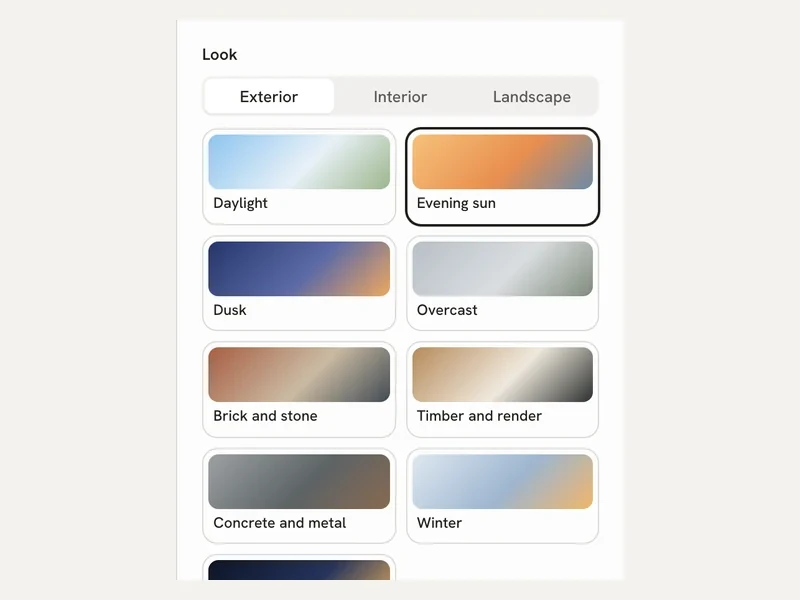
These are the controls it adds on top of free prompting:
- Design-keeping by default. There is no prompt to word carefully. You choose a look and the tool works from your view.
- Facade elevations stay straight-on. A facade elevation stays a straight-on facade with the same layout and no labels.
- A free re-run when the lines drift. If the lines drift, the re-run is on us. Failed renders are refunded in credits automatically.
- Fix one area. Change a single part of a render without regenerating the whole picture, and relight a render when the mood is wrong.
- 36 looks. A set of looks covers exterior, interior, landscape and sketch styles, with an interior mode and a floor plan mode.
- Review links for clients. On Pro and up you can send a link so your client can review the renders.
- Use it from ChatGPT or Claude. A connector lets you use the studio from inside either chat.
The first render needs no account, and you can make 1 every 24 hours. A free account gives 5 free renders and 5 free fixes, with a small logo and for personal use only. Credits never expire, prices include VAT or sales tax, and there is a 14-day refund if you have not used any credits. Current plans are on the pricing page. We do not copy prices here, because they are shown in each visitor’s currency.
The best test is your own model. Render the same view in Gemini or ChatGPT, using the tips above, and in the studio. Count the windows and floors in each result and compare the roofline with your model. The input export is the same for the SketchUp, Revit, Rhino and Archicad routes: read the guides for SketchUp, Revit, Rhino and Archicad. If you start from a plan, see floor plan to 3D.
3Dstudio.co is an architectural visualization studio with 1,200+ projects since 2013, rated 4.9 on Clutch. For tool comparisons, read our list of the best AI rendering software and the guide to free AI rendering tools.
Questions about Nano Banana for architecture
Is Nano Banana free?
Google’s Gemini page lists a free version, Nano Banana 2, and says paid Google AI plans give access to Nano Banana 2.1 and higher generation limits. Check the page for the current plans, because Google changes them.
Can I use Nano Banana to render a SketchUp or Revit model?
You can upload a screenshot of your model and ask for a change. Use a plain shaded view, ask for one change at a time and say what must stay the same. Then check the windows, roofline and floor count against your model, because the tool works from the picture and not from your model file.
Why does the AI add windows to my building?
A general image model repaints a picture from a prompt and has no copy of your geometry. A blank wall looks unfinished to it, so it may fill the wall in. A clean input and a prompt that names the windows as fixed lowers the risk, but you still need to check.
How do I keep several views of one building consistent?
Export each view from the same 3D model, reuse the same material and light wording and start every view from a clean screenshot. Do not use a render as the input for the next one.
Does the Gemini watermark appear on architecture renders?
Google says Gemini adds a visible watermark and an invisible SynthID watermark to AI-generated images. Plan for the visible mark when you send an image to a client.
What is a good alternative when the design has to be kept?
Look for a tool that works from your model view, keeps facade elevations straight-on and has a clear rule for failed renders. The AI Render Studio first render needs no account, so you can test it on your own model before you pay.
Nano Banana and Gemini are trademarks of Google LLC; ChatGPT is a trademark of OpenAI. 3Dstudio.co is not affiliated with either.
More on AI rendering: AI Render Studio · SketchUp AI rendering · Twinmotion Price in 2026: Free Tier, Seats and Real Costs · D5 Render Price in 2026: Community, Pro, Teams and Real Costs · Lumion Price in 2026: Every Plan, Real Costs and a Cheaper Route · V-Ray Price in 2026: Plans, Licenses, Host Programs and a Cheaper Route · Enscape Price in 2026: Every Plan, What It Includes and a Cheaper Route · SketchUp Diffusion: What It Is Now, What It Costs and How to Keep Your Model · AI Rendering for Architects: How to Keep Your Design · ArchiVinci Alternative: An Honest Comparison for Architects · Gendo AI Alternative: An Honest Comparison for Architects · mnml.ai Alternative: An Honest Comparison for Architects · Rendair Alternative: An Honest Comparison for Architects · Best AI for Architectural Rendering: What It Does and When to Use a Studio