

Free STEP viewer
Open STEP and STP files online
Open a STEP or IGES file from SolidWorks, Fusion 360, Inventor, Creo or Onshape. See every part, measure in millimetres and check the size and volume.
Nothing is uploaded: the file is opened on your own computer.
Need photoreal images of this product for a catalogue, web shop or launch? We render from STEP files and send a fixed quote within 30 minutes.
Your file stays on your computer. It is opened in this browser tab and is never uploaded to us or anyone else.
- Every part of an assembly listed, each one can be hidden
- Measure between 2 points in millimetres
- Size, volume and a watertight check for each model
How it works
How to open a STEP file online
3 steps, and the file never leaves your computer.
1. Open the STEP file
Drop the .step or .stp file on the viewer or click to choose it. The solid is turned into a fine mesh in your browser, which takes a few seconds for a large assembly.
2. Look through the parts
The side panel lists every part of the assembly. Untick a part to hide it and see what is behind it, or click a part in the model to see its size.
3. Measure and save
Use Measure to get the distance between 2 points in millimetres. Save a copy as STL for printing, or as GLB or OBJ for other 3D programs.
What you can check
What the STEP viewer shows you
Enough to check a part or an assembly without opening a CAD program.
The parts of an assembly
Each solid in the file is listed by the name the CAD program gave it. Parts with the same name are counted together, so 12 identical bolts show as one line.
Sizes in millimetres
STEP files carry their units, and the viewer converts them to millimetres. The overall size is shown for the model and for any part you click.
Volume and weight
For a closed solid the viewer shows the volume in cubic centimetres and the weight of a solid PLA print, which is a quick first check before a prototype is printed or quoted.
STEP, STP and IGES
STEP and STP are the same format with 2 file extensions. IGES is its older cousin and opens the same way. AP203, AP214 and AP242 files are all read.
Export to STEP
How to export STEP from SolidWorks, Fusion 360, Inventor, Onshape and Creo
Every CAD program can save STEP. These are the menu steps.
SolidWorks
Choose File > Save As, pick STEP AP214 (*.step) or STEP AP242 as the file type and click Save. Use Options to include or leave out hidden parts.
Fusion 360
Choose File > Export, pick STEP Files (*.stp) as the type and click Export. The file is prepared in the cloud and saved to your computer.
Autodesk Inventor
Choose File > Save As > Save Copy As, pick STEP Files (*.stp) as the type, and set the application protocol under Options.
Onshape and Creo
In Onshape, right-click the Part Studio or Assembly tab and choose Export, then STEP. In Creo, choose File > Save As > Save a Copy and pick STEP.
From CAD file to images
What we make from STEP files
Product designers and manufacturers send us their CAD files to be turned into images that sell the product before the first one is made.
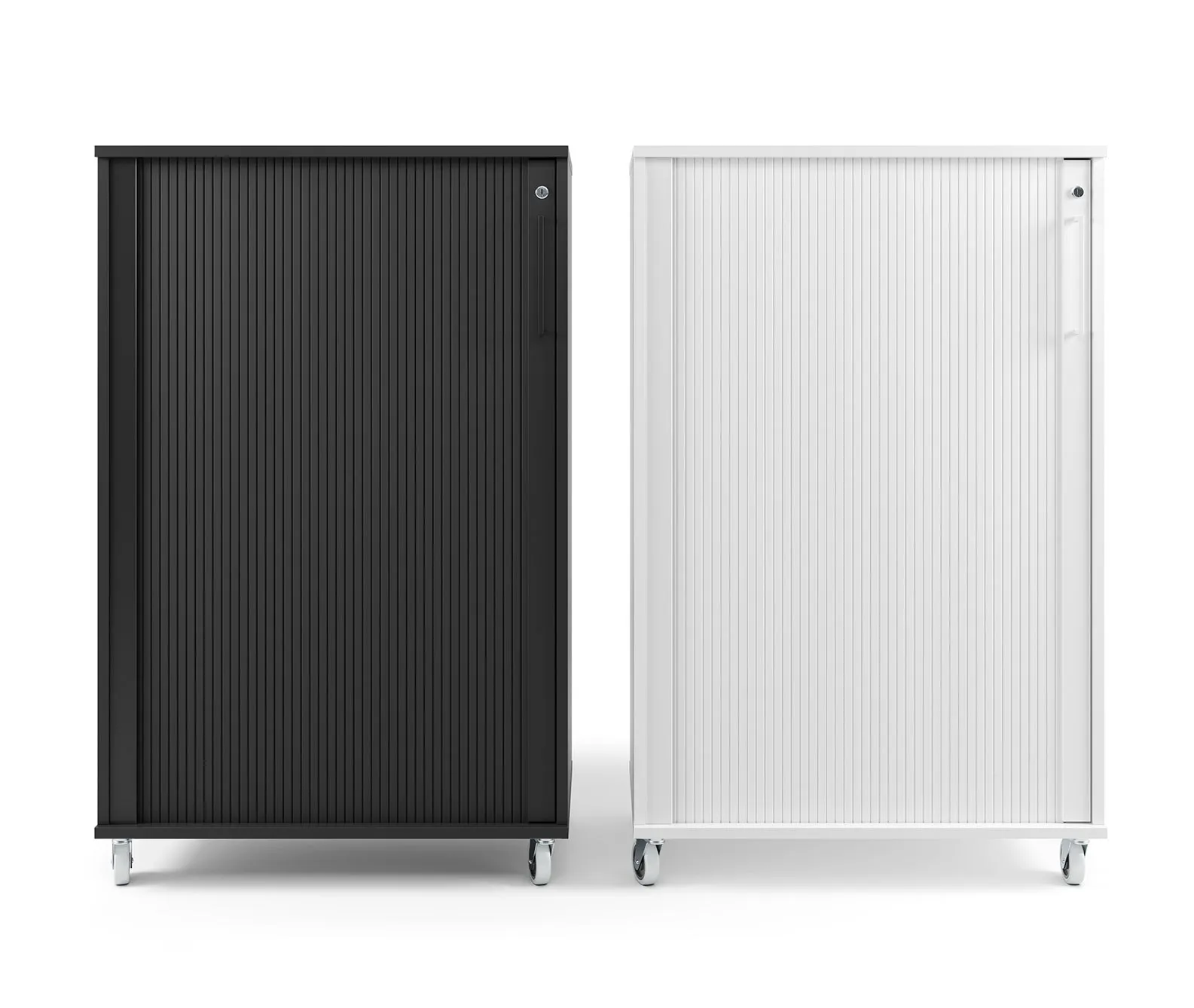
3D product rendering
Photoreal studio and lifestyle images of your product for catalogues, web shops and launches, made directly from the STEP file.
See product rendering
3D modeling
Clean models built from drawings, sketches or a rough mesh, when there is no CAD file yet.
See 3D modeling
Architectural visualization
Photoreal images of buildings and interiors, with your product placed in them where it belongs.
See architectural visualization
STEP viewer FAQ
Questions about viewing STEP files
File versions, faceted curves, assemblies and what the viewer can and cannot do.
Ask us a questionWhat is the difference between STEP and STP?
None. .step and .stp are 2 extensions for the same ISO 10303 format, and both open here. The version inside the file, AP203, AP214 or AP242, matters more than the extension, and the viewer reads all 3.
Why do curved surfaces look slightly faceted?
A STEP file stores exact curves, and every viewer turns them into small flat triangles to draw them. This viewer uses a fine setting, 0.1% of the model size, so the facets only show when you zoom right in. The file itself is not changed.
Can I see the structure of an assembly?
Every solid is listed as a part, with the name from the CAD program, and can be hidden or shown. The nesting of sub-assemblies is not shown as a tree; parts with the same name are grouped instead.
Can it open IGES files?
Yes. .igs and .iges files open the same way as STEP. IGES often stores surfaces rather than closed solids, so the watertight check can say No for a model that looks complete.
Can I edit or dimension the model?
No. The viewer shows, measures and saves a copy of the model in other formats. Edits and drawings with dimensions belong in your CAD program.
More free tools
Other free 3D converters
Each one runs in your browser, like this one.
IFC viewer
Open IFC files from Revit, ArchiCAD and Tekla. Filter by element and level, check properties and measure.
Open the IFC viewerSTL viewer
View STL files for 3D printing with size, volume, weight and a watertight check.
Open the STL viewer3D converter
Convert between STEP, OBJ, FBX, STL, glTF, PLY, IFC and more, in both directions.
Open the 3D converterSTL converter
Convert 3D files and images to STL for 3D printing, with a watertight check.
Open the STL converterOBJ converter
Convert STL, FBX, STEP, glTF and 3DS to OBJ with materials, or OBJ to other formats.
Open the OBJ converterFBX converter
Convert FBX files from 3ds Max, Maya and Blender to OBJ, GLB or STL.
Open the FBX converter1,231
Projects completed
13
Years in business
17
Countries delivered to







★★★★★
Rated 4.9 on Clutch · See our reviews
Architects, developers & interior designers.
Working for 215 companies since 2013.
125 of 220 clients came back.
More than half of our clients have hired us again.

From CAD to catalogue
Send the STEP file and get product images
Attach the STEP file and say where the images will be used. We reply with one fixed price and a delivery date within 30 minutes.